ZIA Locations map
Every Zscaler review comes back to the same question: which of our sites leave identity, inspection or a backup tunnel behind? The ZIA console answers it one location page at a time. The Locations map answers it on one screen.
Every location sits on a world map with the traffic it carried over the last 30 or 180 days. One highlight per setting lights up the sites that skip it, and every location opens a card with two tabs of its own: Traffic (tunnels and how the traffic arrives) and Authentication (how much traffic arrives without a user and how far SSL inspection reaches).
When to use it
- A network with dozens of sites and no single view of them. Counts, states and gaps for all of them, before you open a single location page.
- Finding the sites that skip authentication. One highlight shows the Corporate sites with authentication off; the verdicts show the ones that enforce it while most of their traffic still carries no user.
- Cleaning up locations and tunnels. Sites with no traffic in 180 days, and tunnels configured on a location that carried no tunnel traffic.
- Preparing a review with the network team. The Export gives them the tunnels, authentication and SSL inspection columns per site in one Excel file.
Where to find it in the UI
Hover the ZHERO icon, click Dashboards, select the ZIA tab and then the Locations sub-tab, next to SSL Coverage and URL Inventory. It carries a BETA badge.
Locations has two sub-tabs that read the same traffic:
| Sub-tab | What it shows |
|---|---|
| Traffic and map | The map, the state counts, the highlights and a table of every location with its traffic, gaps, forwarding and tunnels |
| Authentication and inspection | Per location and sublocation: the share of traffic without a user, the authentication and SSL inspection settings, and a verdict |
The map
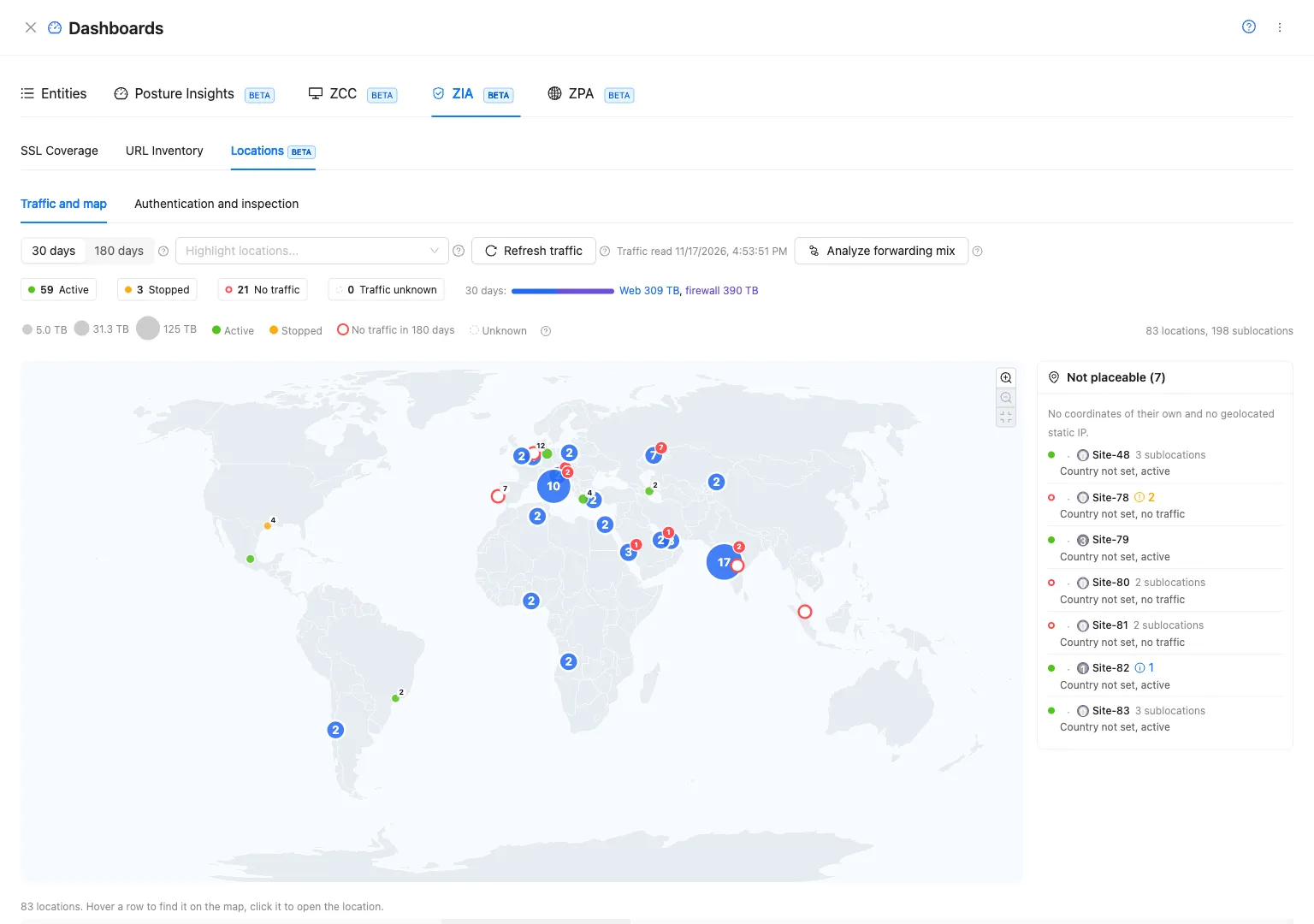
There is one pin per location. Its size follows the traffic of the chosen window (web plus firewall bytes, on one scale for the whole tenant) and its fill follows the state. A location with no traffic is a hollow red ring of fixed size, and one whose traffic is unknown a dashed grey ring: size is volume, so a site with no volume never pretends to have one.
Nearby pins merge into a cluster with the number of locations inside. Clusters are neutral, sized by their summed traffic, and carry a red badge counting the locations with no traffic. A cluster counts its locations by state and lists them; zoom in with the controls at the top right of the map to split it.
Hover a pin to see the location card with its traffic; click it to open the location. A pin carries the number of its sublocations; sublocations have no pins of their own.
The line above the map counts locations and sublocations, and next to the counts a bar splits the traffic of the window into web and firewall bytes.
Where a pin comes from
A location’s own coordinates come first. When they are missing or zero, the pin uses the first geolocated static IP that the location’s IP addresses match, and the card says so. A location with neither goes to the Not placeable panel beside the map (“No coordinates of their own and no geolocated static IP”), with its country, its state and its sublocations.
30 days or 180 days
The 30 days and 180 days switch changes the pin sizes, the totals and the table. It does not change the states: Active always means traffic in the last 30 days.
The traffic is read with four grouped reports (web and firewall, 30 and 180 days), never one report per location. The last complete read is kept for a day, and the time of the read is shown next to Refresh traffic, which reads it again.
Location states
| State | Meaning |
|---|---|
| Active | Web or firewall traffic in the last 30 days |
| Stopped | Traffic earlier in the last 180 days, none in the last 30 days |
| No traffic | No web or firewall traffic in the last 180 days |
| Traffic unknown | A traffic report this state depends on failed or was never read |
The state chips above the map (Active, Stopped, No traffic, Traffic unknown) are also highlights: click one to light those locations. A location whose report was not read stays Traffic unknown; it never counts as a location with no traffic. Refresh the traffic to decide it.
Highlights
Highlight locations lists one highlight per setting, each with its count and a help popover that says what it selects and why an admin looks at it.
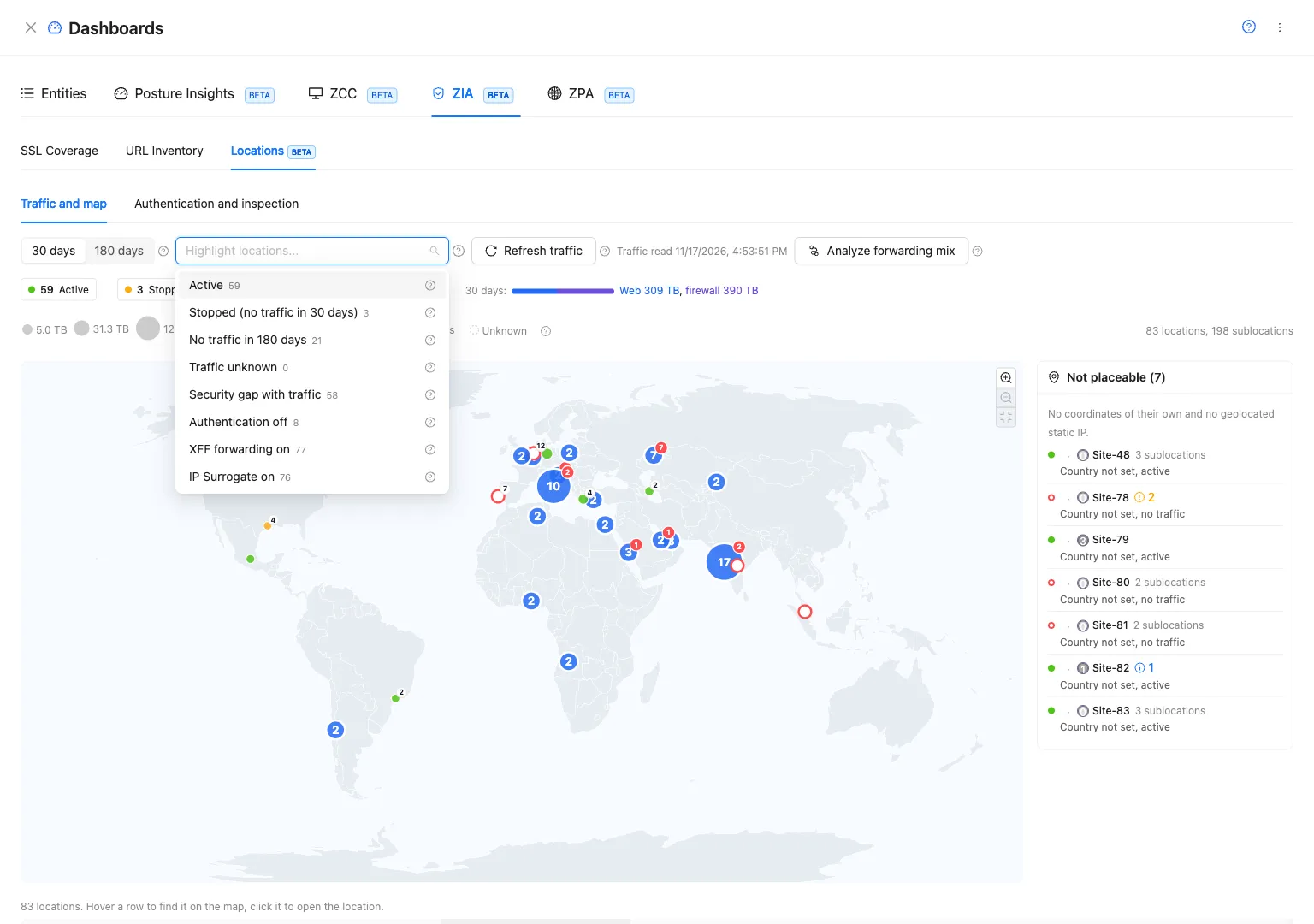
| Highlight | What it lights |
|---|---|
| Security gap with traffic | Firewall Control or IPS Control off on the location, or on one of its sublocations, where that place carried traffic in the last 180 days. Gaps on silent places are listed in the card, not lit. Connector locations are left out |
| Authentication off | Enforce Authentication off on a location, or one of its sublocations, whose profile is Corporate. Guest, IoT and Server profiles are left out |
| XFF forwarding on | Use XFF from Client Request is on: right only when a proxy sits between the users and ZIA |
| IP Surrogate on | The device IP stays mapped to the user who last authenticated from it |
| Connector locations | Locations created for Cloud, Branch or Client Connector |
| Geo override | The coordinates come from the location settings, not from the egress IP |
| No forwarding key | No static IP, GRE tunnel, IPsec credential or proxy port linked to the location, and no recent traffic proving one exists |
| Tunnel without backup | A GRE tunnel with no secondary destination. IPsec is not judged |
| Tunnel unused 180 days | A GRE tunnel or IPsec credential configured on the location with no tunnel traffic in 180 days |
The menu shows only the highlights it can decide on your tenant: the tunnel highlights appear only when what decides them was read, and the two Client Connector highlights appear after a forwarding mix analysis (see How the traffic arrives).
Selecting several highlights shows their union: a location matching any of them stays lit. The rest of the map is dimmed, the table keeps only the matching locations, and the Not placeable panel tints its matching rows.
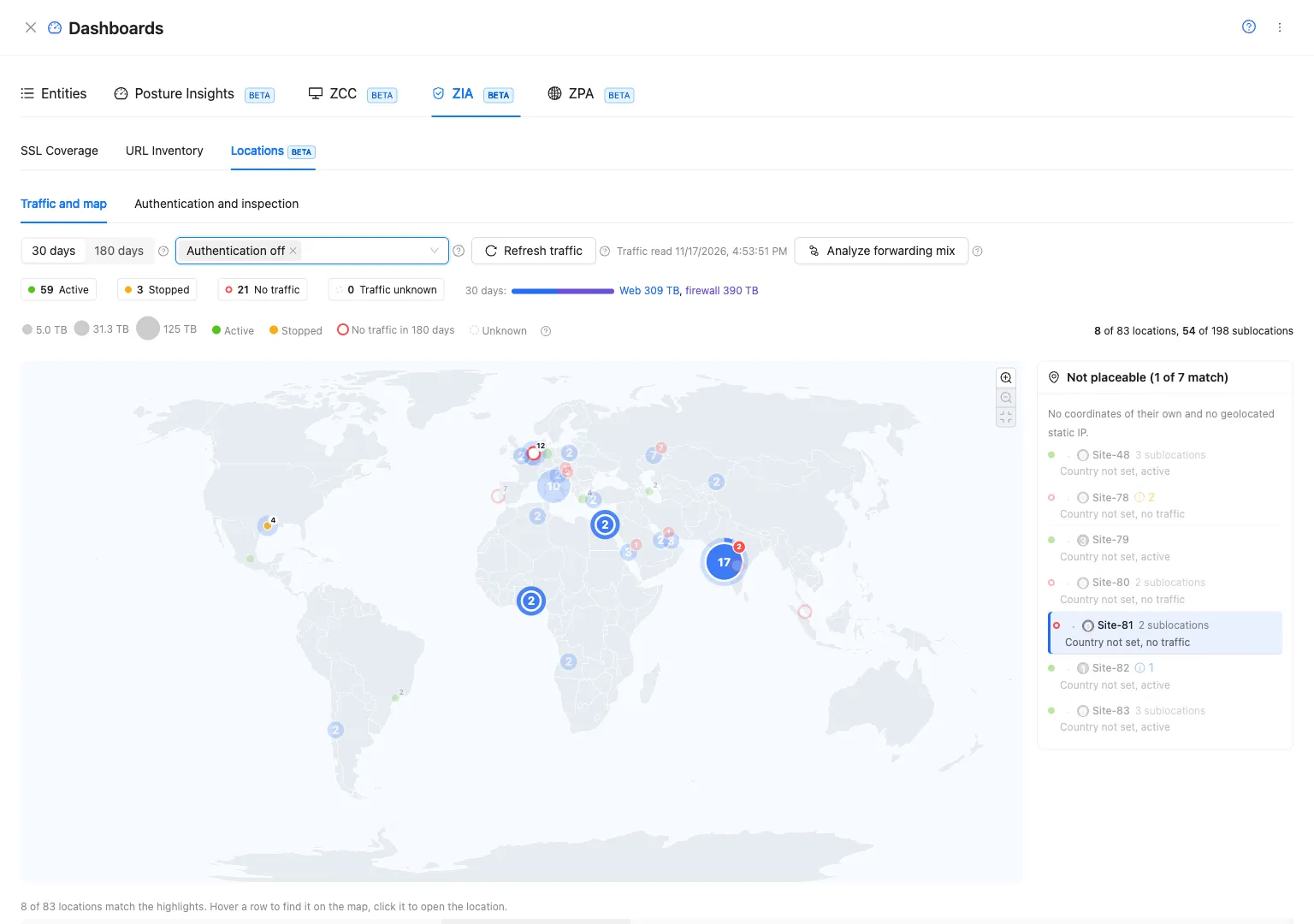
Under a highlight, a cluster gets a halo and a darker arc filling the share of its locations that match, so one match in forty does not read like forty. The line above the map counts the matching locations and their sublocations against the totals.
The table
Under the map, the table lists every location (or the highlighted ones), sortable by its columns. Hover a row to find its pin on the map; click it to open the location.
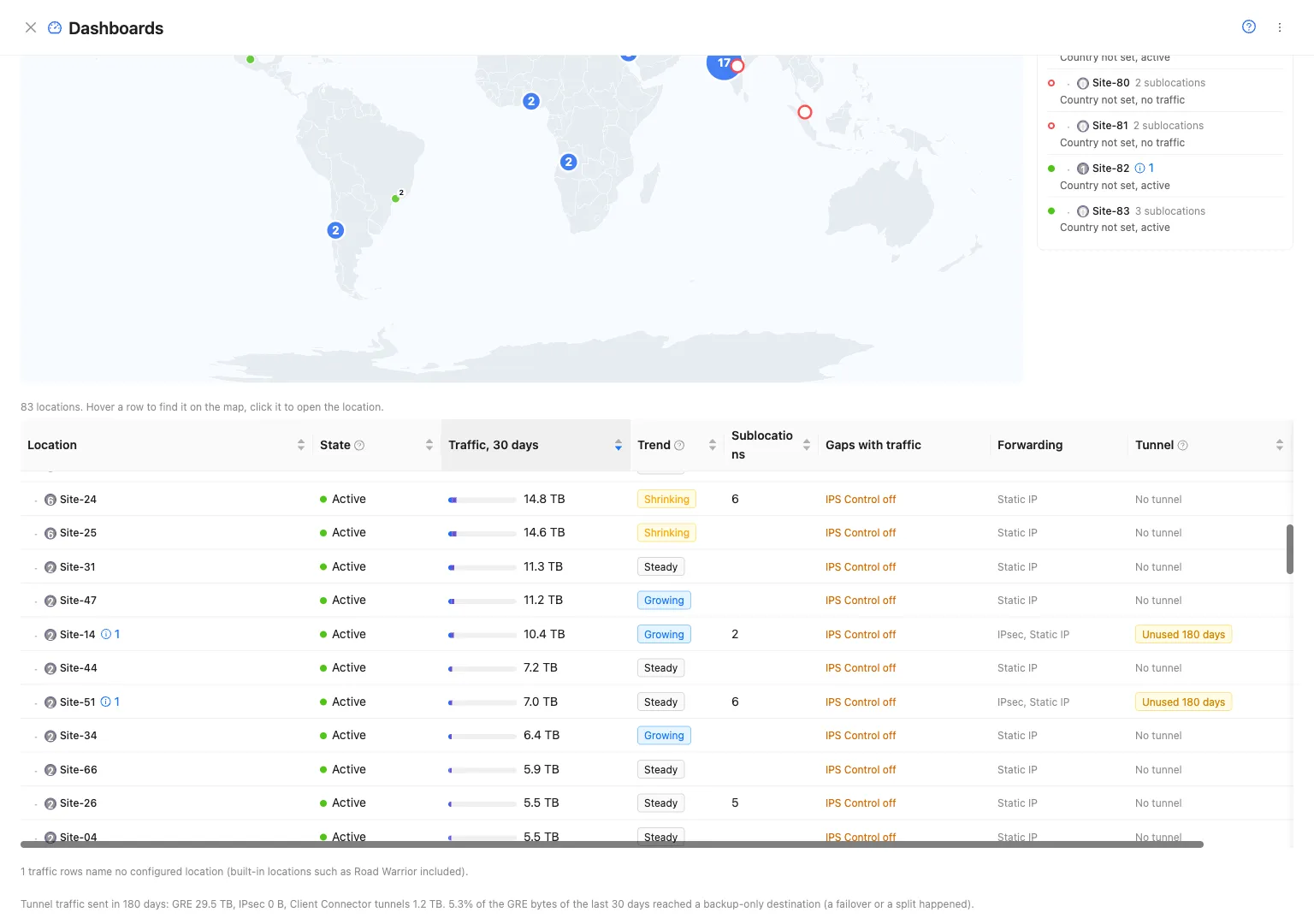
| Column | What it shows |
|---|---|
| State | Active, Stopped, No traffic or Traffic unknown |
| Traffic | Web and firewall bytes in the chosen window |
| Trend | The last 30 days against the average month of the last 180: Growing, Steady or Shrinking. When the two windows are not comparable (a new site, or a 180-day report that returned less than the 30-day one) the trend is not given |
| Sublocations | How many sublocations the location has |
| Gaps with traffic | Firewall Control off or IPS Control off on a place that carried traffic |
| Forwarding | How traffic is tied to the site: static IP, GRE, IPsec |
| Tunnel | The tunnel state: In use, Idle 30 days, Unused 180 days, No tunnel or Unknown |
Under the table, two notes complete the picture: how much traffic names no configured location (built-in locations such as Road Warrior included), and the tunnel traffic of the tenant in 180 days by type.
Tunnel states
A tunnel is Unused 180 days only when Tunnel Insights shows no tunnel byte for that location in 180 days while other tunnels of the tenant do log traffic. Without that proof the state stays Unknown: a tenant whose tunnel logs are empty proves nothing about a single tunnel. Treat an unused tunnel as a cleanup candidate, and check that the site still exists and reaches ZIA another way before removing it.
The location card
Click a location, on the map or in the table, to open its drawer. The top of the card shows its settings (IP addresses, time zone, XFF forwarding, authentication, Surrogate IP, Firewall Control, IPS Control), its location groups, its sublocations and the firewall rules that reference it. Below it, two tabs come from the map.
Traffic tab
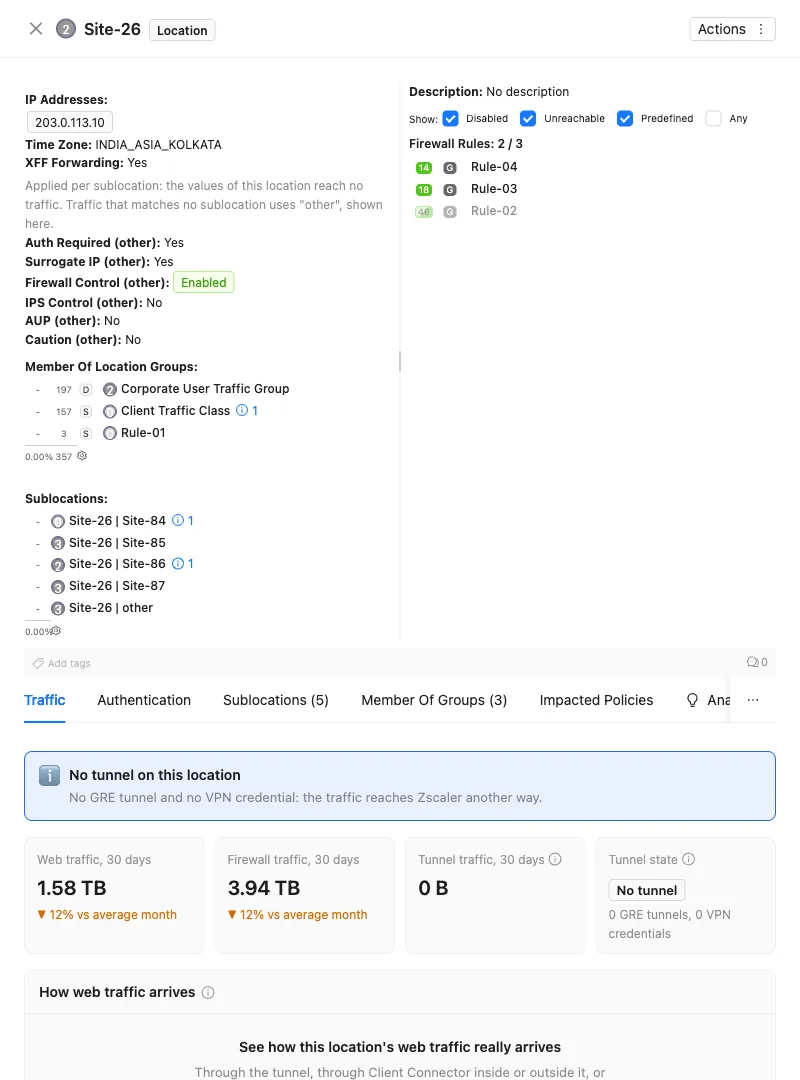
The Traffic tab opens with a verdict on how the location reaches Zscaler (for example No tunnel on this location, Tunnels in use or Tunnels unused for 180 days), then the web, firewall and tunnel traffic of the last 30 days against the average month, the tunnel state, and the tunnels with their traffic.
How the traffic arrives
Analyze forwarding mix, on the map toolbar or in the Traffic tab, splits the web traffic of every location by forwarding method:
- Client Connector direct
- Client Connector in a tunnel
- Tunnel without Client Connector
- Connectors and other
What none of the four accounts for is shown as Forwarding not classified. The analysis reads four “top” web reports over the last 7 days, one per method, one at a time on the console’s shared report slot. It keeps going if you leave the tab, and the result is kept for two weeks with the date it was read; Analyze again reads it fresh and asks first.
With a mix in hand, the menu gains two highlights:
- Client Connector inside the tunnel: at least half of a site’s web traffic is Client Connector inside GRE or IPsec. Zscaler advises against routing Z-Tunnel 2.0 through GRE.
- Client Connector direct: at least 90% of a site’s web traffic goes through Client Connector directly although a tunnel is configured. That is the recommended path for Client Connector users, so it is context, never a finding.
Authentication tab
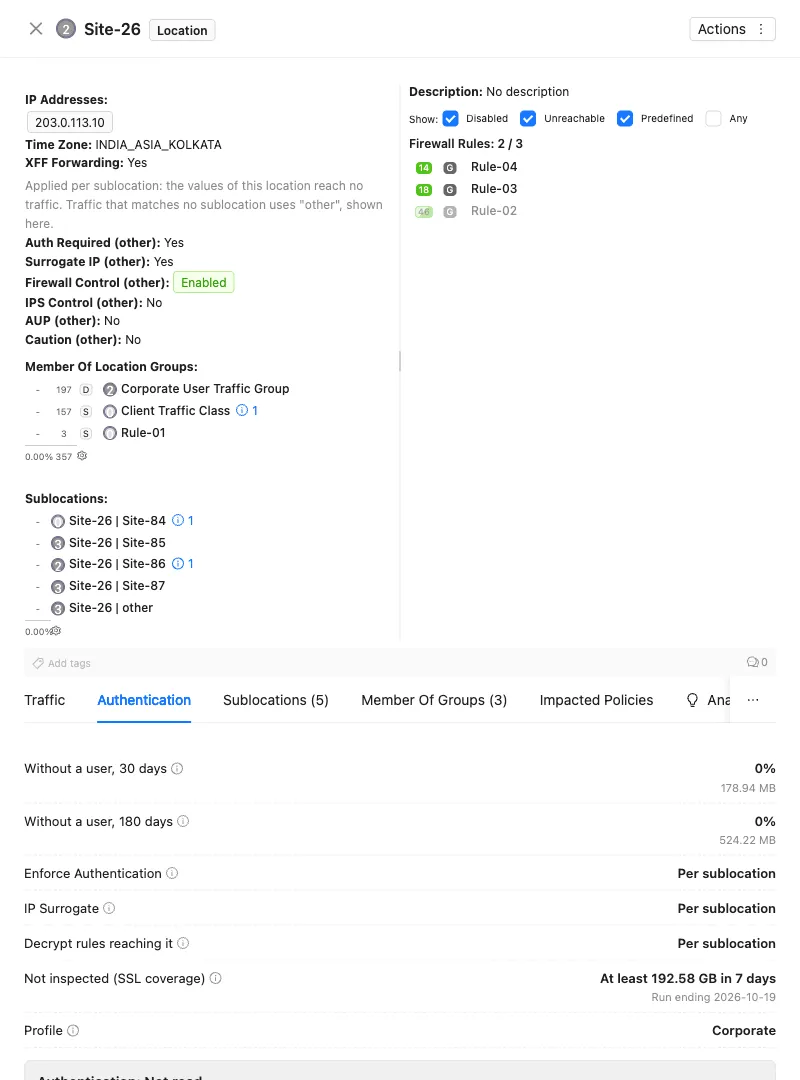
The Authentication tab answers for one location (or sublocation) what the Authentication and inspection sub-tab answers for all of them: the share of web bytes without a user over 30 and 180 days, Enforce Authentication, IP Surrogate, the Decrypt rules reaching it, the profile and the verdict. It is available on sublocations too.
Not inspected (SSL coverage) comes from the last SSL Coverage run stored in your browser, never from a new run. It is context, not a verdict, and a lower bound (“At least”) unless the run attributed every byte to a location.
Authentication and inspection
The second sub-tab reads, per location and per sublocation, how much traffic arrives without a user and whether SSL inspection reaches the place, and turns the two into verdicts.
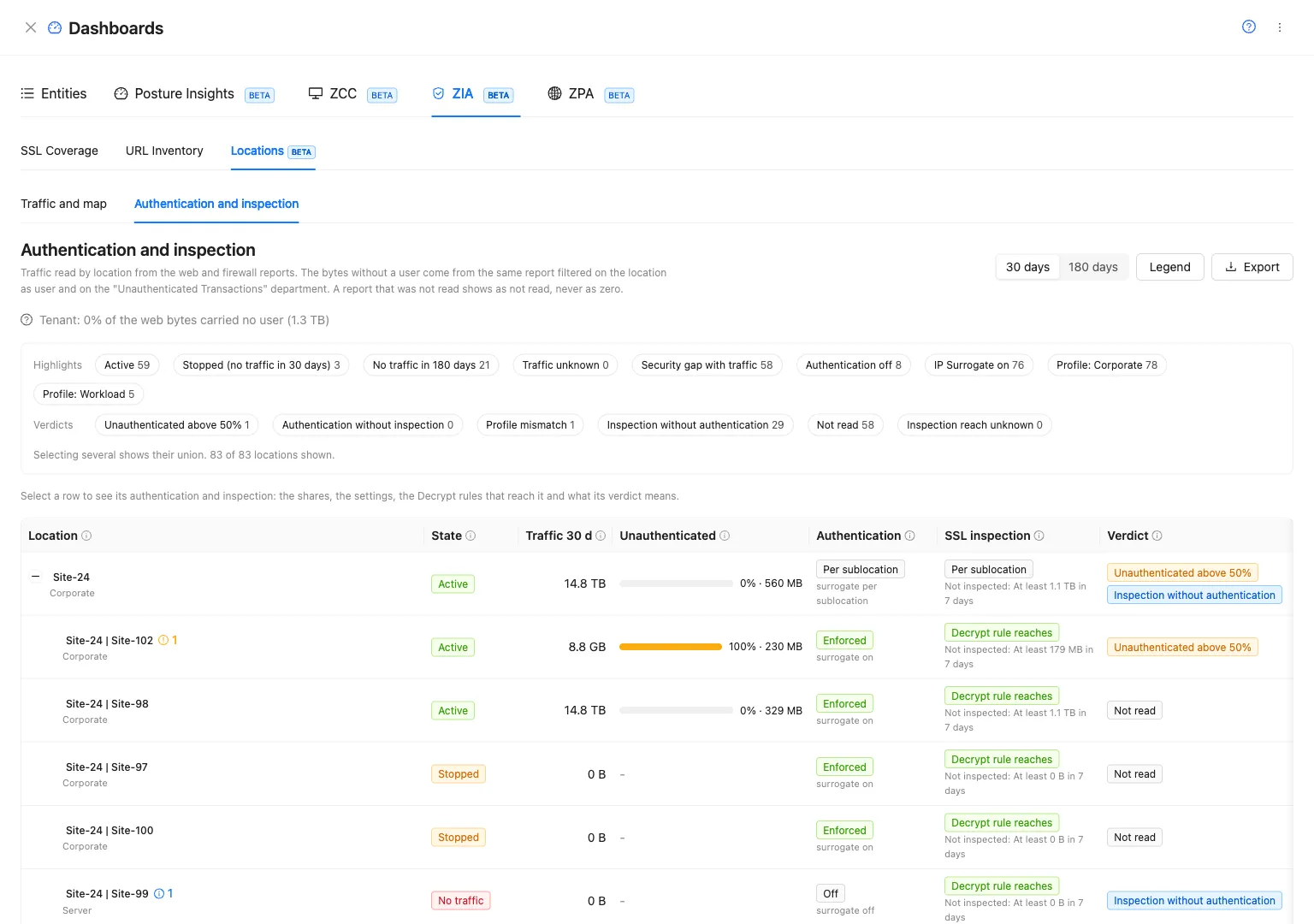
The bytes without a user come from the web report by location, filtered on the location as user (where authentication is not enforced, ZIA logs the location itself as the user) and on the “Unauthenticated Transactions” department (where it is enforced, the transactions that skip it land on seven special users of that department). A report that was not read shows as not read, never as zero.
The chips at the top work like the highlights of the map: Highlights (states, settings and one chip per location profile) and Verdicts, each with its count. Selecting several shows their union, and Clear resets them.
The table
| Column | What it shows |
|---|---|
| Location | The location, its profile under the name; sublocations sit under their site |
| State | Active, Stopped, No traffic or Traffic unknown |
| Traffic | Web and firewall bytes in the chosen window |
| Unauthenticated | The share of web bytes without a user, and those bytes |
| Authentication | Enforced, Off or Per sublocation, with whether IP Surrogate is on |
| SSL inspection | Whether an enabled Decrypt rule reaches the place (Decrypt rule reaches), with the bytes the last SSL Coverage run saw not inspected |
| Verdict | One or more verdict tags |
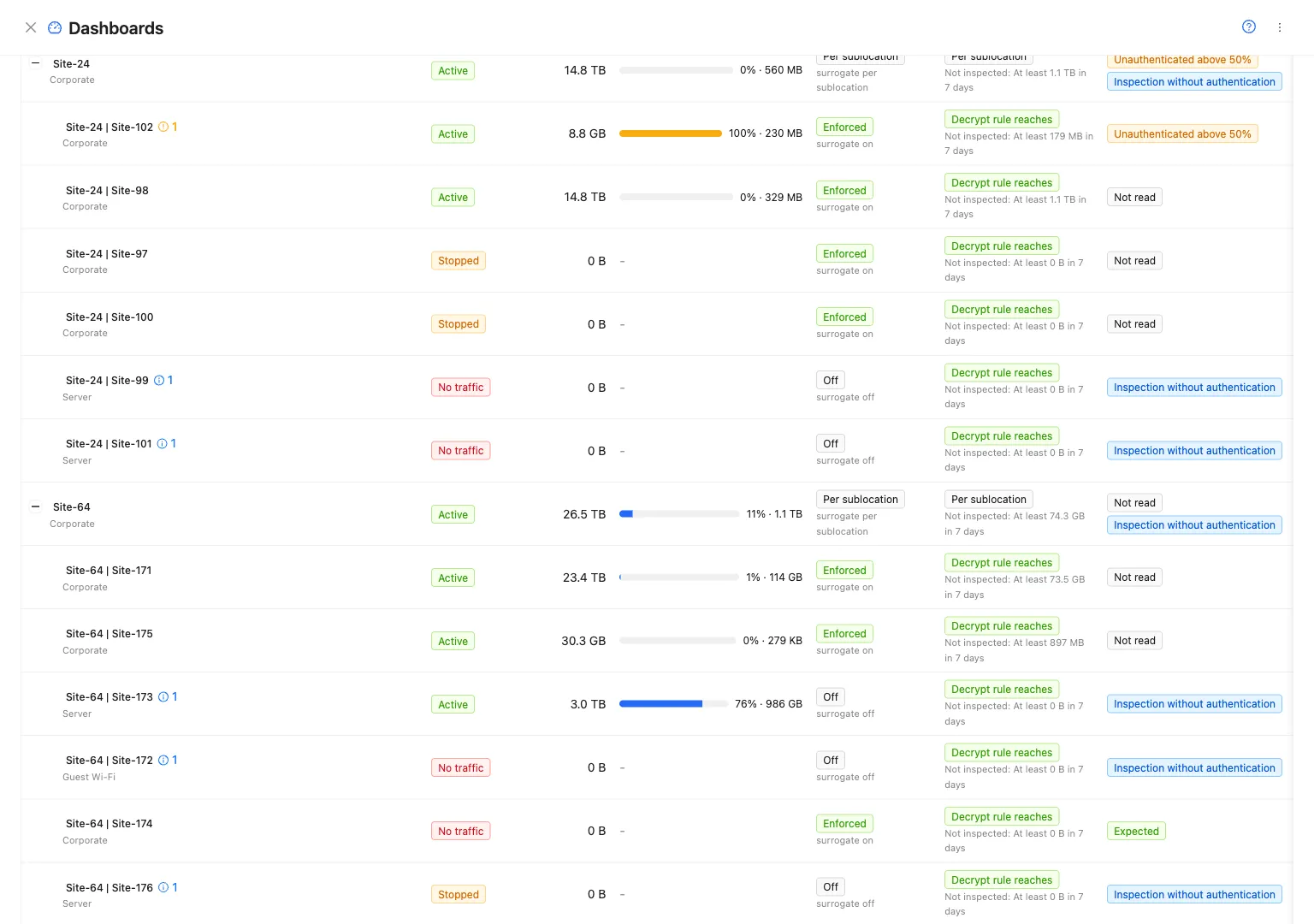
Select a row to see its authentication and inspection in detail: the shares, the settings, the Decrypt rules that reach it and what its verdict means.
Verdicts
Legend opens the same rules as the table below. A location with sublocations takes the union of their verdicts, and its worst authentication verdict.
| Verdict | Meaning |
|---|---|
| Unauthenticated above 50% | A Corporate location enforces authentication, yet more than half of its web bytes in the deciding window carried no user (the last 30 days, or 180 when it had no web byte in 30). Rules on users, groups and departments do not apply to that traffic |
| High | Unauthenticated above 50% with at least 10 GB without a user in 30 days |
| Authentication without inspection | Authentication enforced, no enabled Decrypt rule reaches the location and the closing rule does not decrypt. HTTPS that is not decrypted carries no authentication cookie, so much of it arrives without a user |
| Profile mismatch | A Guest Wi-Fi, IoT, Server or Workload profile with authentication enforced: those devices cannot follow an authentication redirect |
| Inspection without authentication | Authentication off and a Decrypt rule reaches the location. Right only where the devices trust the Zscaler root certificate (servers that carry it); low on its own, confirm the devices behind the location |
| Expected | The profile, the authentication switch and the inspection agree: no verdict found |
| Not read | The share without a user is undecided: a report failed or was not read, the window is beyond the log range of your admin role, or the “Unauthenticated Transactions” department is missing from the reports |
| Inspection reach unknown | The SSL Inspection rules or the location groups were not read, or the only Decrypt rule that may reach a sublocation names its site |
| No finding | No authentication finding, and the SSL Inspection rules were not read, so inspection is not judged |
A Decrypt rule reaches a place when it names the location, a location group listing it, or no location at all. The rules are walked in evaluation order, the default rule last.
Export
Export, at the top of the Authentication and inspection sub-tab, opens the locations export: an Excel file with the standard location columns plus a Tunnels group (tunnel traffic over 30 and 180 days, tunnel state) and an Authentication group: the traffic and share without a user over 30 and 180 days, the authentication finding, the Decrypt rules reaching the location, the closing SSL action, the inspection finding and the bytes not inspected from the last SSL Coverage run. For a location with sublocations, the parent’s own values are faded, since they apply to no traffic. See the Export catalog.
Badges on the console Locations page
On the classic Locations page of the ZIA console, ZHERO adds the map’s signals next to the location name:
- Stopped or No traffic, for a site that went quiet;
- the gaps of a site that carried traffic, such as IPS Control off.
An active site with no gap shows nothing: the badge is there only where you have something to decide. The badges read the traffic the map already read and never start a read of their own, so they appear after the map (or a refresh) has read the traffic.
Privacy
The map is drawn from an atlas included in the extension, with no map tiles downloaded and no map provider called; traffic is read with your console session and cached in the browser. Location names, IPs and traffic never go into ZHERO logs, error reports or analytics. See Privacy & Data.
Limits and notes
- Availability: the Locations map is available on licensed ZIA and Experience Center tenants; the trial shows the ZIA tab without the Locations sub-tab. See Trial and licence.
- Sublocations have no pins of their own. They share the coordinates of their location, which carries their count; they appear in the card and in the Authentication and inspection table.
- No SSL inspection highlight on the map. The map does not light the sites where traffic is not inspected: the Decrypt rule reach and the verdicts are on the Authentication and inspection sub-tab, and the traffic not inspected is investigated in SSL Coverage.
- Unused tunnels need live tunnel logs. Without tunnel traffic logged elsewhere on the tenant, a tunnel stays Unknown.
- IPsec backups are not judged. The backup tunnel usually reuses the same VPN credential, and ZIA does not see it.
- The forwarding mix covers the last 7 days of web traffic and is a lower bound where a location falls outside the heaviest rows of a “top” report.
- Your admin role decides what can be read. A 180-day window beyond its log range stays not read.
FAQ
Does the map change anything in my tenant? No. It reads the location lists and traffic reports. The only write is the Excel file you export.
Why is a location Stopped and not No traffic? Stopped means traffic earlier in the last 180 days and none in the last 30. No traffic means nothing in 180 days. The two never compare amounts across windows, only zero against non-zero.
Why is a location missing from the map? It has no coordinates of its own and none of its static IPs is geolocated. It is listed in the Not placeable panel with its country.
Why does a Guest Wi-Fi site with most traffic unauthenticated have no verdict? Unauthenticated above 50% applies only to Corporate profiles that enforce authentication. Guests are expected to browse without a user; enforcing authentication on them is the Profile mismatch verdict.
Why is a verdict Not read rather than a number? A report failed, fell beyond your role’s log range, or the “Unauthenticated Transactions” department is missing from the reports. ZHERO never turns a missing read into a zero.
Related pages
- Traffic Analytics: traffic on any entity, over 30 or 180 days
- SSL Coverage: where the traffic that is not inspected goes, and the run the Authentication tab reads
- Security Posture Dashboard: the location checks in the posture score
- Analysis templates catalog: the location checks
- Export catalog: the locations export
Next steps
- Open the map and read the counts: how many locations are Stopped or have No traffic?
- Select Authentication off and open one of the lit sites
- On the Authentication and inspection sub-tab, filter on Unauthenticated above 50% and Authentication without inspection
- Export the locations with the Tunnels and Authentication columns for the network team