Entities Table
The Entities table is the one place where every object in your tenant, of any type, is a row you can sort, filter, configure, select and act on. The Zscaler console shows you one policy family per screen with the columns it decided you needed. This table lets you decide.
It is the working surface for anyone doing inventory, cleanup, tagging or bulk changes.
When to use it
- Inventory and audit: list an entity type with exactly the columns the question needs.
- Tagging campaigns: select many entities and tag them in one gesture.
- Bulk changes: the selection you make here is what Mass Edit and policy reordering operate on.
- Turning findings into work: select the affected entities and create linked to-dos.
Where to find it in the UI
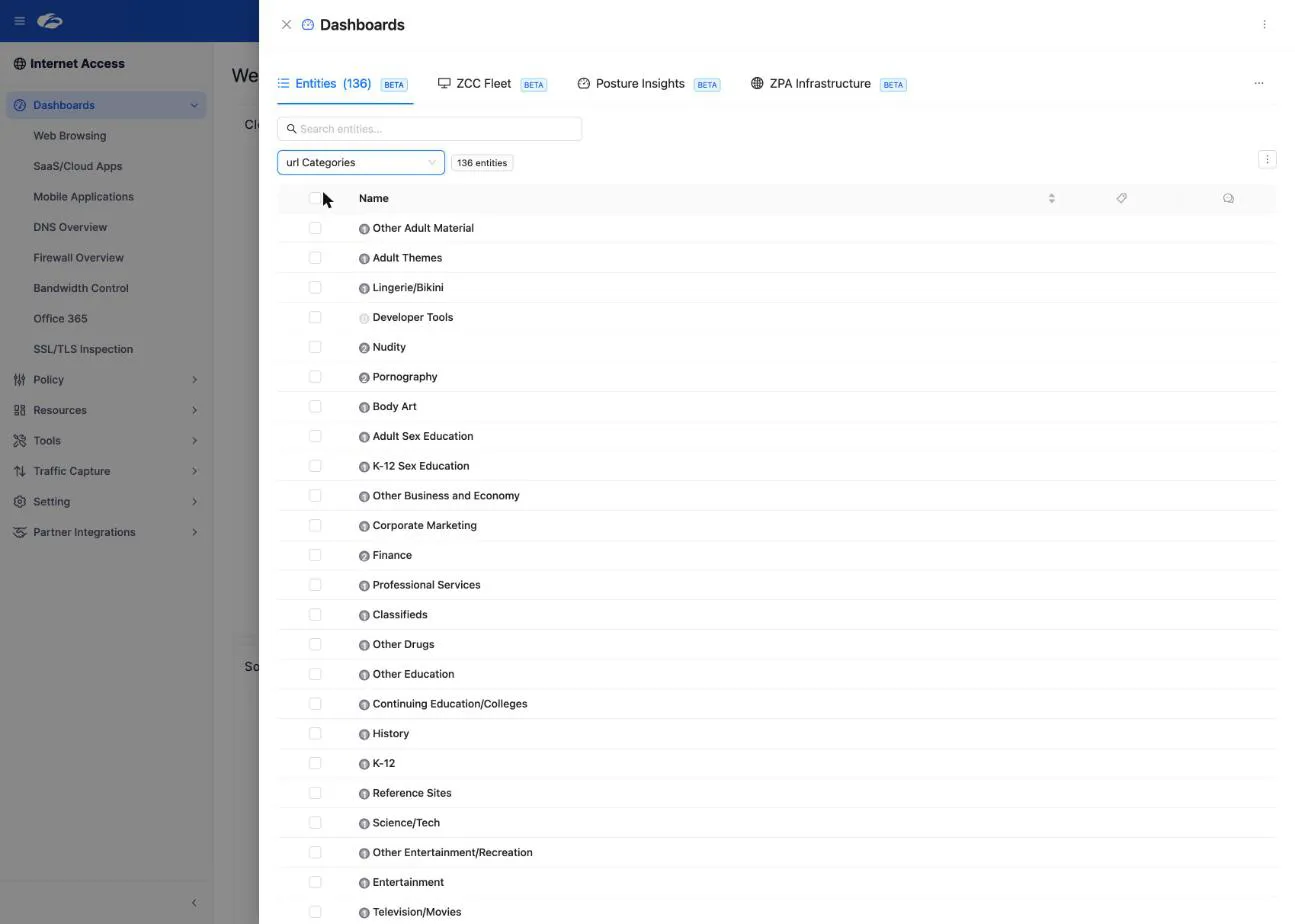
Hover the ZHERO icon, click Dashboards, and open the Entities tab, the first of the drawer’s tabs (Entities, Posture Insights, ZCC, ZIA and ZPA, each shown when your tenant and licence offer it). The tab label shows a count of the entities currently listed.
Pick an entity type from the selector, and the table loads that type. Pick more than one and each type gets its own block on the same page; any view can also leave the drawer and float over the console. Both are covered in Floating Entities Panels.
What counts as an entity
An entity is anything ZHERO can name, badge, look up and open in a drawer, and the list goes well beyond policies. That is what makes the table useful for questions the console has no page for.
| Family | Types |
|---|---|
| ZIA policies and rules | URL filtering, SSL inspection, firewall, DNS, IPS, DLP, file type, bandwidth, cloud app control, forwarding and sandbox rules |
| Network objects | Locations and location groups, IP source and destination groups, network applications and their groups, network services and their groups, ports, PAC files |
| People and organisation | Users, user groups, departments |
| Devices | Devices and device groups, device trust levels, ZCC posture profiles, app profiles, forwarding profiles |
| Content | URLs, URL categories, cloud applications |
| Tenant settings | Advanced threat protection settings and exceptions, malware protection, FTP control, advanced settings |
| ZPA | Access and client forwarding policies, application segments and groups, server groups, app connectors and connector groups, machine groups, posture profiles, trusted networks, client types, platforms, risk factor types, ZPA users and groups |
Two consequences are worth spelling out. A setting is an entity too, which is why a tenant-wide option can carry a tag, a comment and a finding just like a rule. And a criterion is an entity, which is why the users, posture profiles and trusted networks inside a policy are clickable rather than plain text.
Which types the selector offers depends on your tenant: a ZIA tenant does not list ZPA types, and an Experience Center tenant lists both.
Configuring the columns
The three-dots menu at the top right of the table is the column menu. From there you can:
- Show or hide any column, applied immediately
- Reorder the visible columns
- Add curated relational columns on policy entities: the criteria fields the policy actually uses, such as users, groups, posture profiles, trusted networks, client types, platforms, locations, URL categories or application segments. Each cell renders the referenced entities as interactive items, capped at 15 with a “+N more” control
- Add fields from “Other fields”, an automatically derived section exposing the remaining attributes ZHERO holds for that entity type
- Reset to defaults for the current entity type
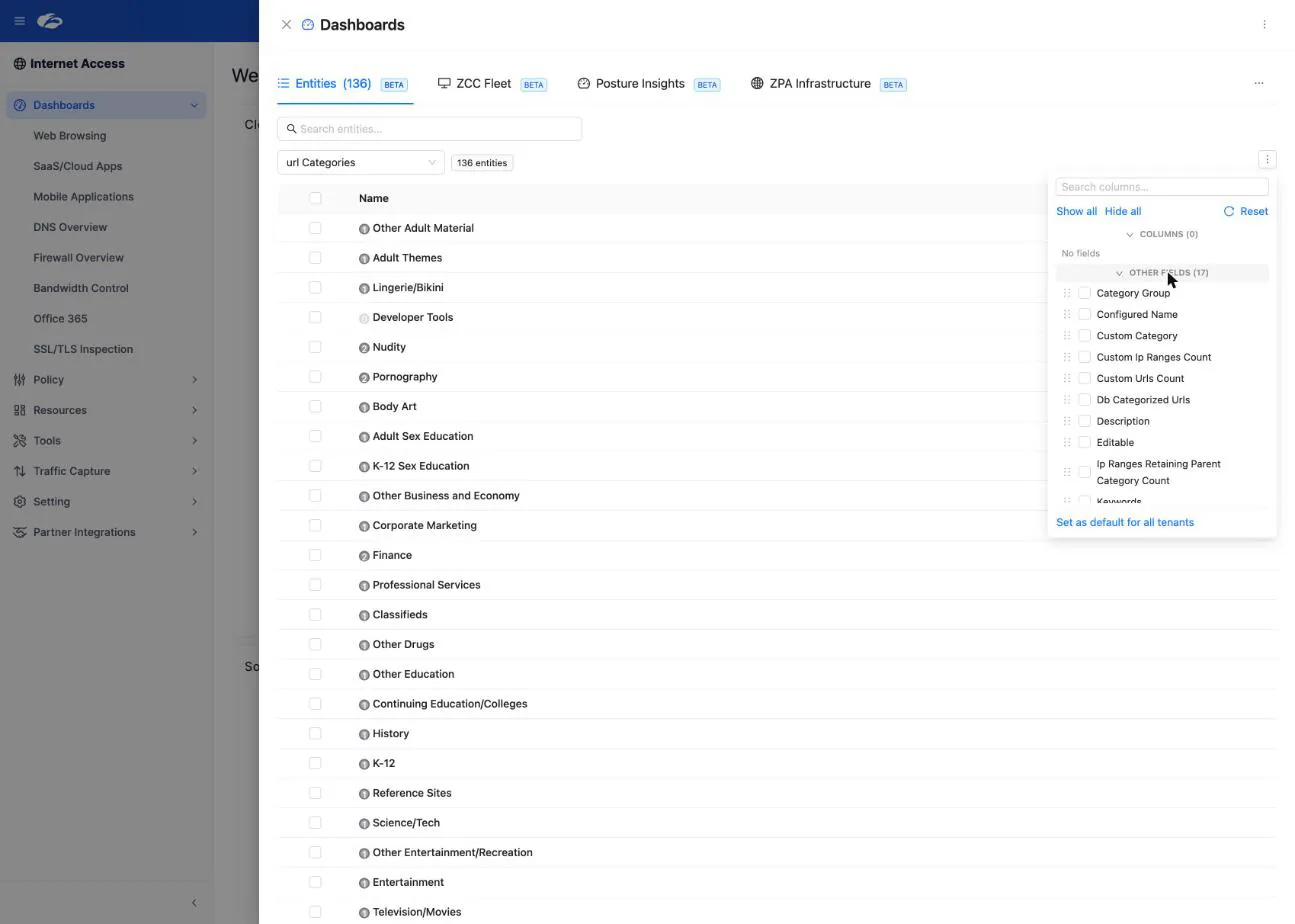
The arrangement is saved automatically, per entity type. Come back tomorrow, switch to that entity type, and the table is exactly as you left it. Each entity type keeps its own layout, so customising firewall rules does not disturb application segments.
This is the feature that turns “export it to Excel and pivot it” into “look at it”. A policy list with the posture criterion as a column answers a posture audit on screen.
Selecting and acting
Select rows with the checkboxes and a bulk action bar appears:
| Action | What it does |
|---|---|
| Assign Tag | Apply a collaboration tag to every selected entity |
| Unassign Tag | Remove a tag from the selection |
| Preferred | Mark tags as preferred, so they surface on entity cards and inline views |
| To-do actions | Create a new to-do for the selection, or link and unlink existing ones |
| Mass edit | Open the Mass Edit dialog for the selected entity type |
Bulk tagging and to-do actions need Collaboration enabled. Mass edit appears only for entity types that have editable fields, and only while reordering mode is off.
Reordering policies
On policy entity types, the table is also where rule order is changed: drag a rule to a new position, type a target position for precision, or select several rules and move them together. System and default rules are locked. See Policy Reordering for the full workflow.
What to watch
- The count next to the tab label is the number of entities currently listed, which reflects your filters. It is not necessarily the total in the tenant.
- Curated columns are relational. A cell listing 40 user groups tells you something about the policy before you open it.
- Selection survives your actions, not your filters. Mass edit captures the selection at the moment the dialog opens, so changing a filter behind the dialog does not silently change what you are editing.
Limits and notes
- The tab is labelled BETA.
- Relational cells cap at 15 items with a “+N more” expander, to keep rows readable.
- What you can see is what your Zscaler role can read. Entity types outside your permissions do not appear.
- Column layouts are saved per entity type, and a tenant-level override takes precedence over your global preference where one exists.
- Nothing in this table writes to the tenant directly. Every change goes through Pending Changes.
FAQ
Can I export what I see here? The export engine produces the Excel reports, with its own column selection and saved templates. The table is for working on screen; the exports are for handing data to someone else.
I added a column and it is empty for most rows. Curated relational columns only have content where the policy actually uses that criterion. An empty posture column across a policy family is itself the finding.
Why is Mass edit missing? Either the selected entity type has no editable fields, or reordering mode is active, or the capability is not enabled for your tenant.
Do my column choices affect my colleagues? No. The layout is yours.
Related pages
- Floating Entities Panels: several types at once, and views over the console
- DLP Engines and File Types
- Mass Edit
- Policy Reordering
- Tags and Comments
- Shared To-Do Lists
- Getting Around ZHERO
Next steps
- Open Dashboards, Entities, and pick the entity type you work with most
- Use the three-dots menu to build the view you always wished the console had
- Select a few rows and tag them, to see the bulk bar in action
- Come back tomorrow and confirm the layout is still there