Export Catalog
ZHERO produces nine Excel reports the Zscaler console does not, all through the same drawer: you choose the columns, their order, how multi-value fields are laid out, and whether your team’s tags and comments come along.
This page is the index of what you can export and how the drawer works. The URL export has its own page, because it is the largest.
When to use it
- Handing data to another team: the firewall team, the auditors, the endpoint team. They do not have ZHERO and should not need it.
- Recurring reviews: save the column set once and produce the identical sheet next month.
- Cleanup by numbers: rules and categories with zero traffic over 30 days are a list, and a list is easier to act on than a console screen.
- Migration inventories: segments, domains, ports and connector groups in one sheet.
Where to find it in the UI
Hover the ZHERO icon, then open the Exports button (download icon). The menu groups the entries under Export - Common, Export - ZIA and Export - ZPA, and lists the ones available for your tenant type. Each opens the same drawer, titled “Export (report name)”.
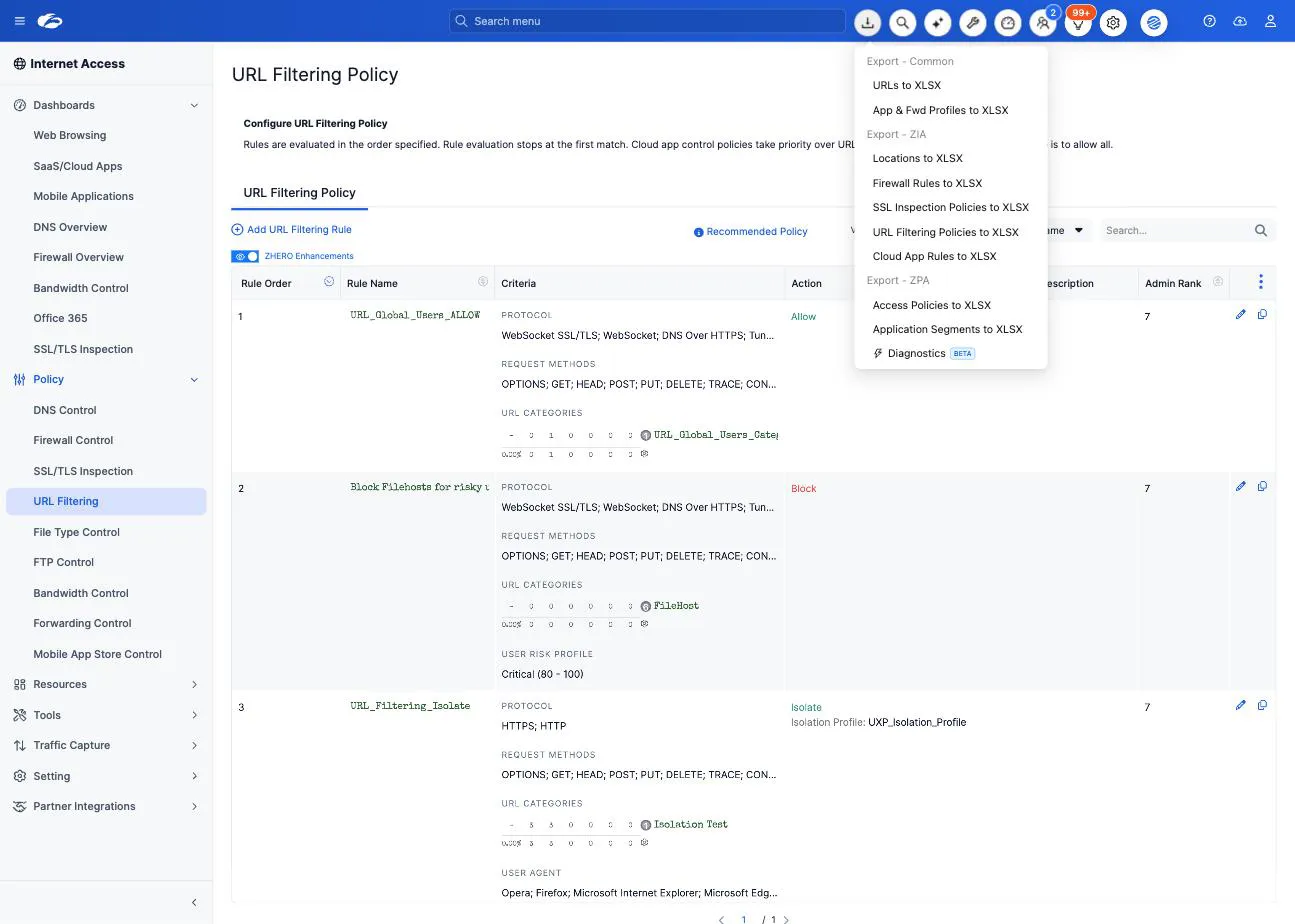
The last entry, Diagnostics (BETA), is not an export: it opens the ZPA diagnostics engine, which shares the menu because it shares the drawer.
The nine exports
| Export | What it carries |
|---|---|
| URL Inventory | Every URL across categories, rules, PAC files and profiles, with wildcard detection, policy impact, category membership, security-risk classification and zero-impact highlighting |
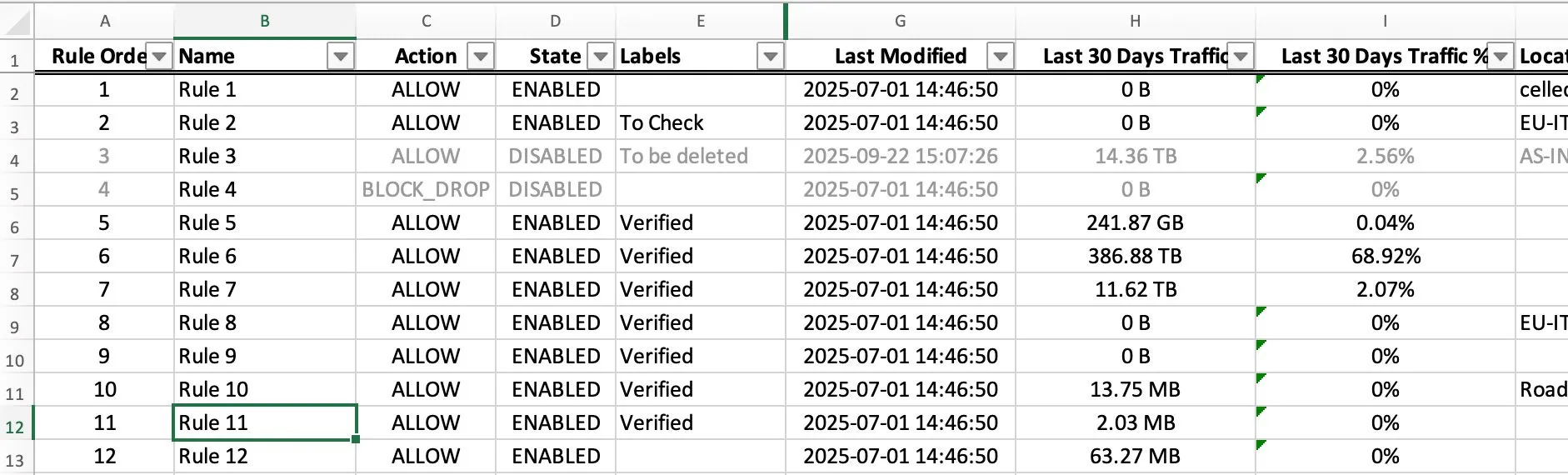
| Firewall Rules | Full rule configuration (source, destination, action, protocols) with 30-day traffic volume and transaction count per rule, disabled rules greyed and block actions highlighted |
| Location Configuration | Every location and sub-location, its settings, policy usage count, and both web and firewall traffic for the last 30 days with share percentages |
| App & Forwarding Profiles | The ZCC profile inventory with configuration per profile, PAC file content, usage indicators, and the policy-token and machine-token columns |
| SSL Inspection Policy | Rule configuration, inspect against bypass action, protocol settings, 30-day traffic, and which traffic bypasses inspection |
| URL Filtering Policy | Source criteria, destination categories, action, scheduling, protocol and port detail, with 30-day traffic per rule |
| Cloud App Control Rules | Cloud app names, categories and risk classification per rule, the granular operation controls (upload, download, share), user and group criteria, and 30-day usage |
| ZPA Access Policy | Policies in flat mode (one row per policy) or expanded mode (one row per condition), with full attributes and application references |
| ZPA Application Segment | Segments with domains, FQDNs, IP and CIDR ranges, TCP and UDP port ranges with service names, server and connector groups, and the access policies that reference each one |
The export drawer
Every export shares the same controls.
Columns
Columns are grouped by theme and selected with checkboxes. Hover a column name for a description of what it contains. Below the selection, the chosen columns appear as a draggable list: the order there is the column order in the Excel sheet.
Flat or matrix, for multi-value fields
A field that holds several values (the user groups on a rule, the categories on a policy) can be exported two ways:
| Mode | Result | Use it for |
|---|---|---|
| Flat | All values in one cell, joined by a separator | Reading, printing, sharing |
| Matrix | One column per distinct value | Filtering and pivoting in Excel |
Matrix columns are marked as such in the reorder list, and they move as a single item.
Separator
For flat multi-value cells, choose comma, semicolon or newline. Newline is the one that survives a paste into most other tools.
Collaboration columns
Where Collaboration is enabled, the export can include your team’s tags, preferred tags and comments next to the configuration data. An audit spreadsheet where each rule already carries its review status, in the team’s own words, does not need a second tracking sheet.
Templates
Each export keeps two preset slots. Save your current column selection, modes and separator into a slot, then load it with one click next time. Reset returns the drawer to its defaults.
Generating
Press the export button and the drawer shows progress while the workbook is built, then downloads it. Large tenants take longer: the work is the data gathering, not the file.
What to watch
- The traffic window is 30 days wherever traffic columns appear, and it is the same window Zscaler exposes. For the 180-day view, see Traffic Analytics; the two windows are mutually exclusive within a sheet, so a report always states which one it reflects.
- Zero traffic is not the same as unused. Check a longer window before deleting on the strength of a 30-day zero.
- Flat mode for humans, matrix mode for Excel. Choosing matrix because it looks complete usually produces a sheet nobody can read.
- Column order matters more than it seems when the sheet goes to someone outside the team. Put the identifying columns first.
Limits and notes
- Exports are read-only. Nothing here changes the tenant.
- Advanced export options and templates require the full version. During a trial the drawer opens and the controls are visible, with an upgrade prompt in place of the download.
- Available exports depend on the tenant type. ZPA exports appear on ZPA-capable tenants, ZCC profile exports where the data exists.
- Your Zscaler role bounds the content. Objects your role cannot read are not in the sheet.
- Two template slots per export, per tenant. They are yours, not the team’s.
FAQ
Can I schedule an export? No. Exports are produced on demand. The template slots are what make a recurring report a one-click job rather than an automated one.
Why is a column empty for most rows? Usually because the field only applies to some objects, and that is itself information. Traffic columns are empty where Zscaler reports no traffic in the window.
Flat or expanded for ZPA access policies? Flat for an inventory, one row per policy. Expanded when you need to analyse the conditions, one row per condition. Auditors generally want both.
Can I get the team’s comments into the sheet? Yes, with the collaboration columns, if Collaboration is enabled for the tenant.
The file is taking a long time. The export gathers data from the tenant before it writes anything. On large tenants that is the bulk of the wait, and the progress bar reflects real work.
Related pages
- URL Inventory Export: the biggest report, with its own guide
- URL Inventory
- Tags and Comments: what the collaboration columns carry
- Traffic Analytics: the 30 and 180-day windows
- ZPA Diagnostics Engine: the other Excel output, from logs rather than configuration
Next steps
- Open the Exports menu and run the report closest to the question you get asked most
- Trim the columns to what the recipient actually needs, then reorder them
- Save it as a template so next month is one click
- Try matrix mode once on a multi-value field to see what it does to a pivot