Floating Entities Panels
The Entities table answers questions about one entity type at a time. Real questions often span several: “everything tagged finance-migration”, “the rules and the URL categories this change touches”. And the table lives in a drawer, which covers the console you are trying to change.
Multi-type views put several entity types on one page. Floating panels take any view out of the drawer and keep it on screen, over the console, while you work.
When to use it
- A tag across types: every rule, category, location and application segment carrying one tag.
- A change that spans types: the rules and the objects they use, side by side.
- Working from a list: keep the list of what to fix on screen while you fix it in the console.
- “Show me all of them”: from one location, every location; from one rule, every rule of its type.
Where to find it in the UI
Hover the ZHERO icon, click Dashboards, and open the Entities tab. Open all <type> is also in the Actions menu of any entity, and a tag chip on an entity card opens every entity with that tag in a panel.
Several types at once
In the type selector (Select entity types…), pick up to 5 types. Each type gets its own block on the same page, with its own columns, filters and saved layout, exactly as in the single-type table. Bulk actions work across the blocks.
Filter by tag… applies one or more tags to every block at once (several tags combine: an entity carrying any of them is shown). With a tag selected, All tagged types shows every entity type that carries it, without having to pick the types first.
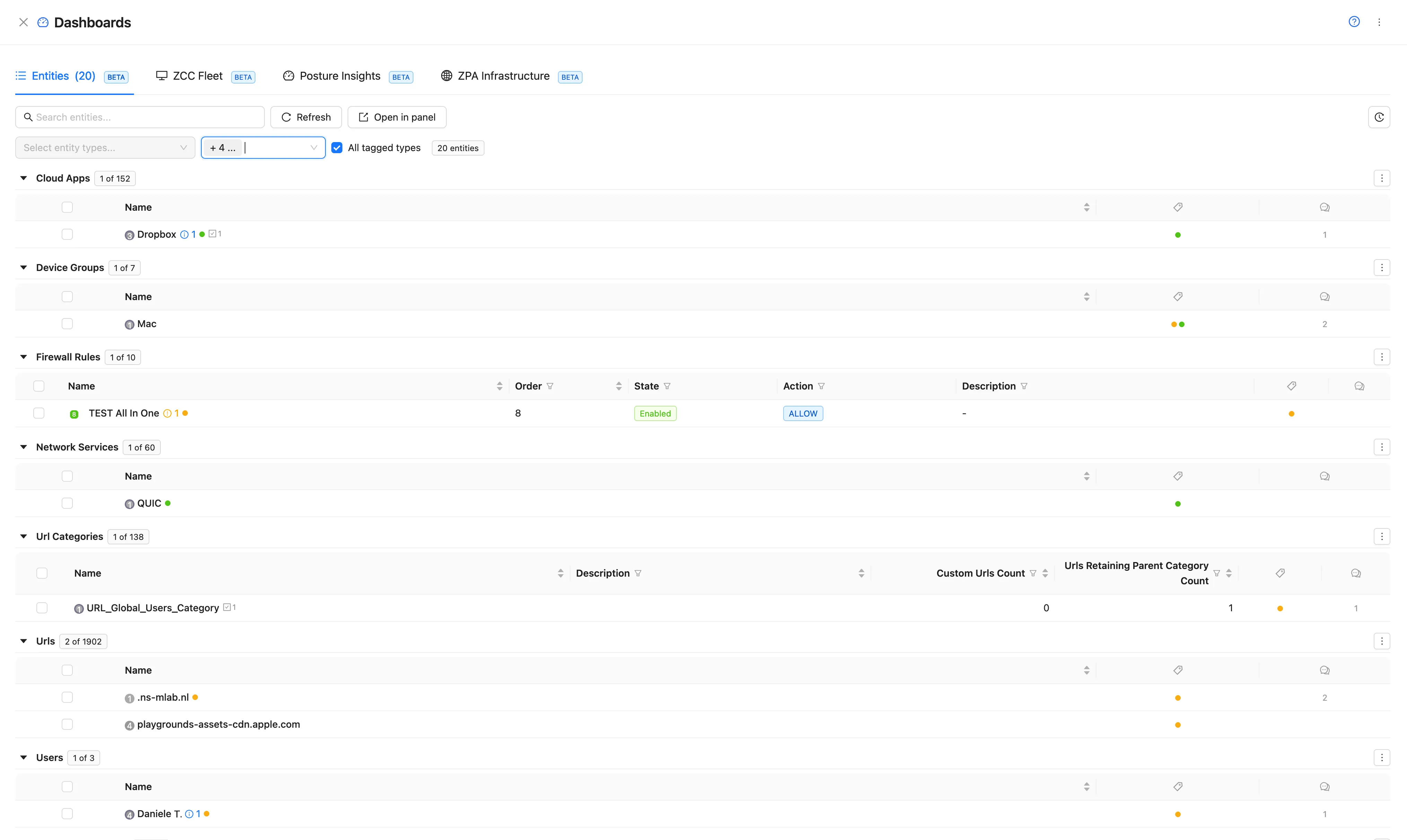
Open in panel
Open in panel moves the current view out of the drawer into a floating window over the Zscaler console. Move it and resize it where it does not cover what you need; the console underneath stays usable. Up to 8 entity panels can be open at once.
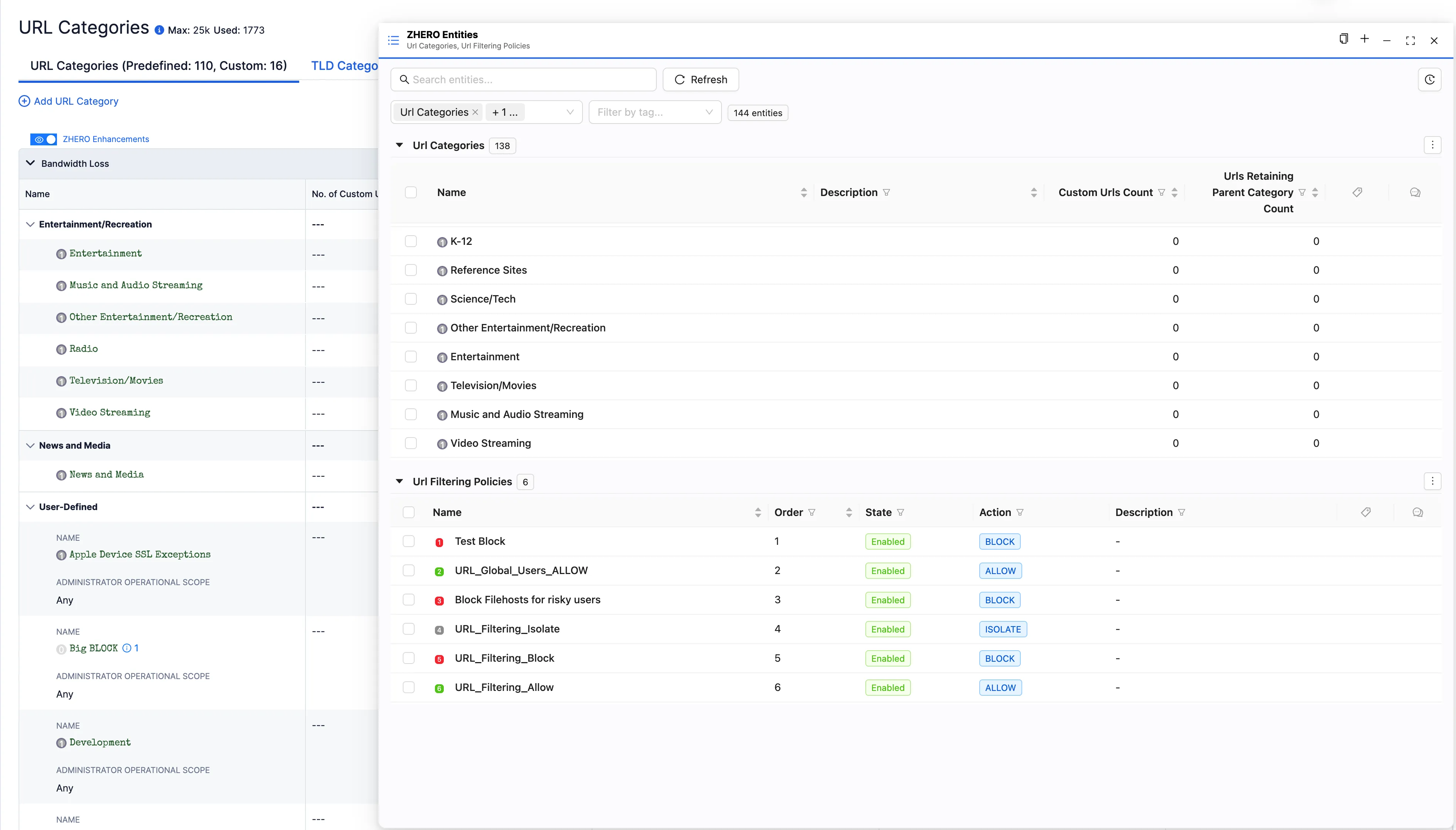
Open all of a type
In the Actions menu of an entity, Open all <type> (Open all locations, Open all URL categories, and so on) opens every entity of that type in a panel, with the entity you came from highlighted and scrolled into view. It is the fastest way to see one object in the context of all its siblings.
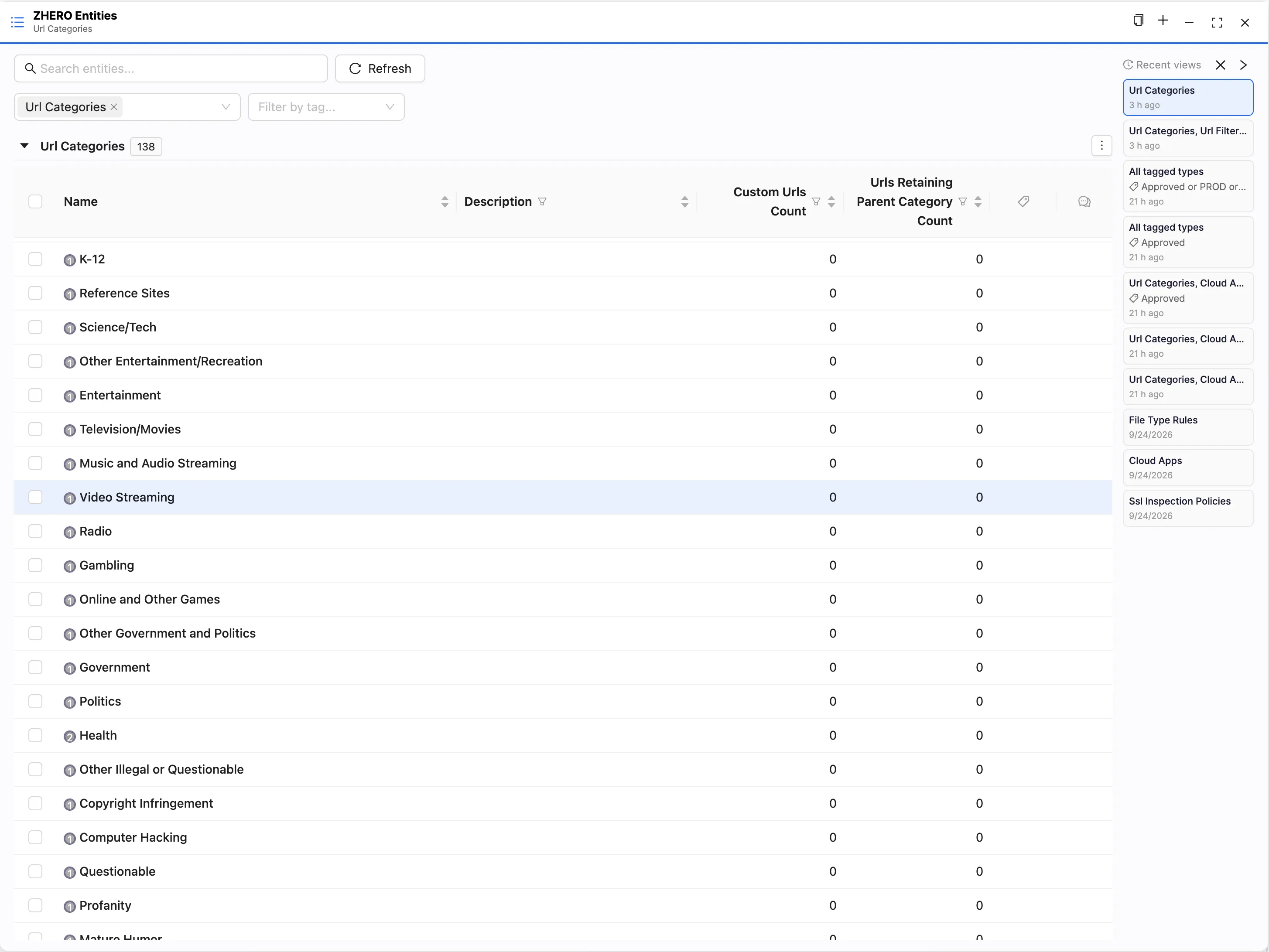
Recent views
Your last 10 views are kept in a rail at the side of the tab, one click away. Hide recent views folds the rail so it takes no space; the clear button empties it. Each view shows its types (or All tagged types), the tags it was filtered on, and when you opened it. Recent views are kept per tenant, in this browser, and do not include the search text.
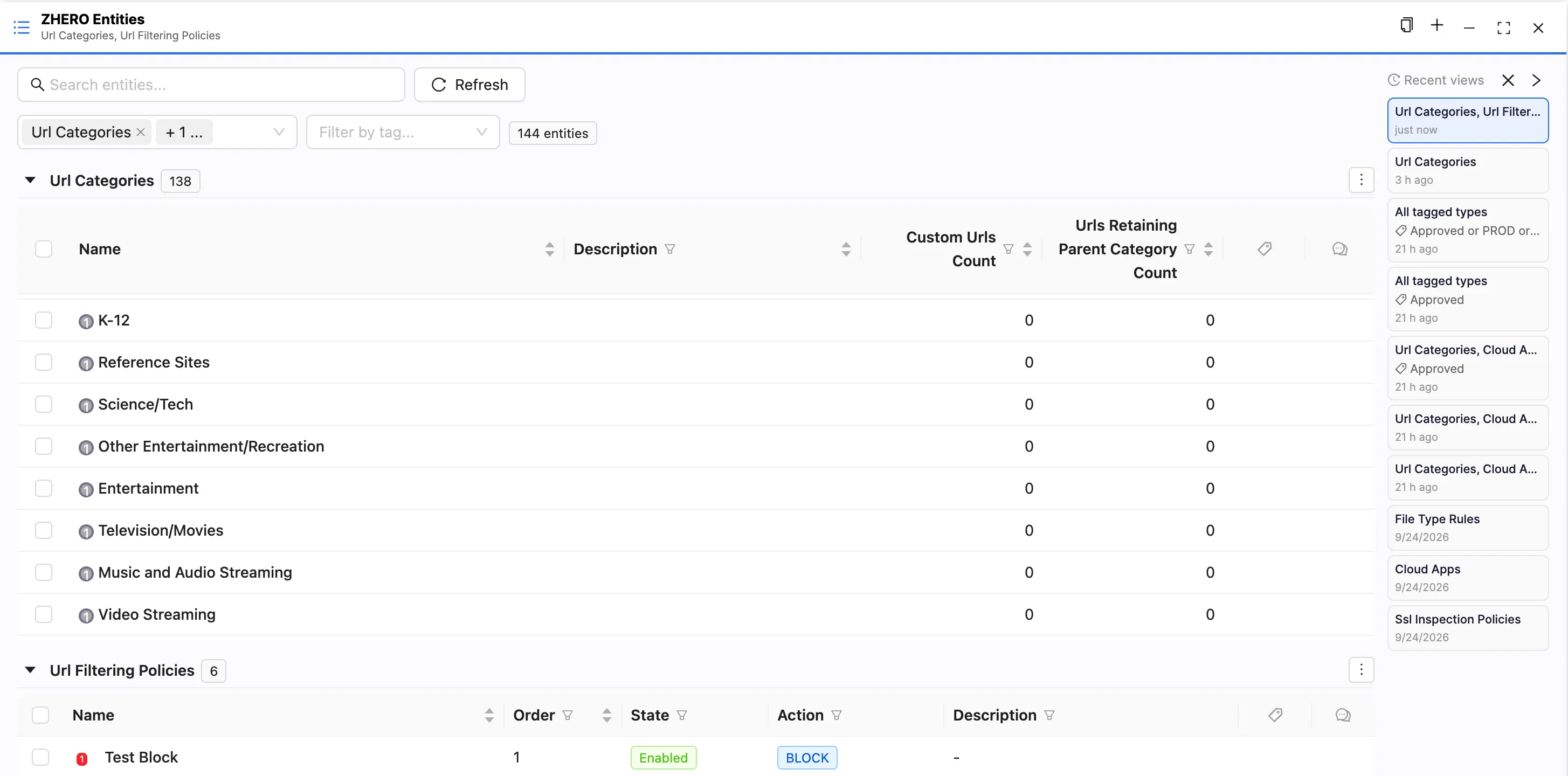
What to watch
- Reordering and mass edit need one block. With several types on the page, those two actions step aside: go back to a single type to use them.
- A tag filter is only as good as the tagging. An entity that should carry the tag and does not will not appear. The view is also a quick check of how consistent the tagging is.
- Eight panels is the ceiling. Close one to open another.
Limits and notes
- Up to 5 types in one view and up to 8 entity panels at once.
- The tag filter uses Collaboration tags, which need Collaboration to be enabled (it is off during the trial).
- Recent views are stored in this browser, per tenant.
- Nothing here writes to the tenant. Changes still go through Pending Changes.
FAQ
Is this the same table as the Entities table? Yes. Each block is the Entities table for one type, with the same columns and layouts. This page covers what happens when there are several blocks, and when the view leaves the drawer.
Can I have the logs and the entities side by side? Yes. A Floating Logs Panel and an entities panel can be open over the console at the same time.
Related pages
- Entities Table: columns, layouts and bulk actions
- Tags and Comments: the tags the filter uses
- Floating Logs Panel: the same idea for logs
- Getting Around ZHERO
Next steps
- Open Dashboards, Entities, and pick two types you usually check together
- Filter both by a tag you use
- Open the view in a panel and keep it next to the console page you are working on
- From any entity’s Actions menu, try Open all