Pending Changes
Nothing ZHERO does reaches your tenant by accident. Every write, whether you typed it, bulk-edited it or accepted it from an analysis finding, lands in a pending queue first, where you can read the diff, reorder it, share it with your team, and decide when it goes live.
This page is for anyone who makes changes in Zscaler and wants a review step between intent and production.
When to use it
- Multi-step changes where one object must exist before another can reference it.
- Bulk work staged from Mass Edit, URL category editing or policy reordering.
- Anything that needs a second pair of eyes: share the queue with the team, or export the PDF and put it in the change ticket.
- Remediations from Smart Analysis, which arrive here with their source finding attached.
Where to find it in the UI
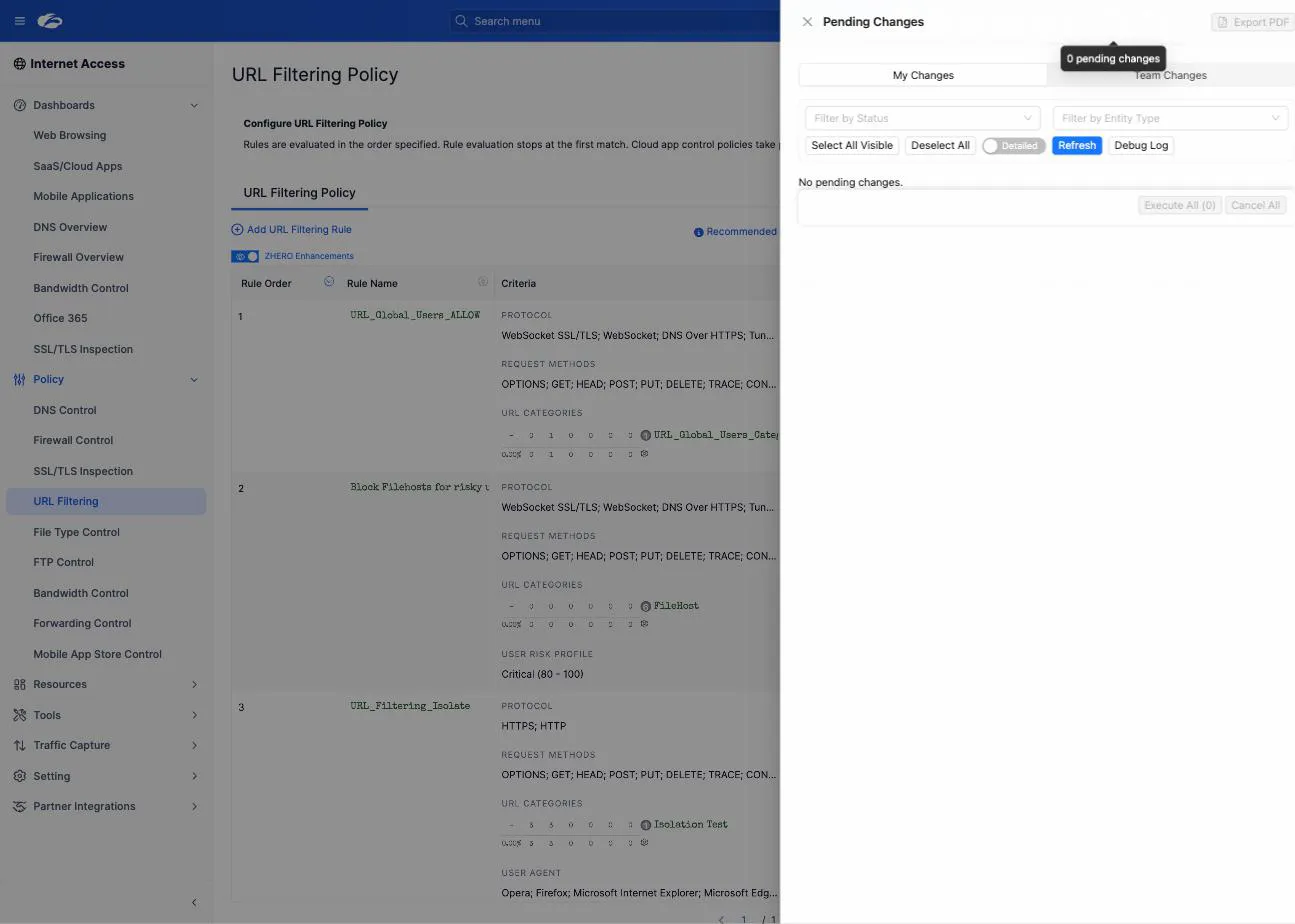
Hover the ZHERO icon in the Zscaler console to open the button row, then click the Pending Changes button (gear icon, last in the row). The drawer opens on the right.
The button carries a count badge, and its colour tells you what is in the queue:
| Badge colour | Meaning |
|---|---|
| Cyan | Personal changes only |
| Violet | Team (shared) changes only |
| Indigo | Both |
Hovering the button shows the split in words, for example “4 personal, 2 shared pending changes”. The main ZHERO icon carries a combined badge when the menu is closed, so a queue you forgot about is visible from anywhere in the console.
The two queues
At the top of the drawer, a toggle switches between My Changes and Team Changes, each with its own count.
- My Changes is your personal queue. It lives in your browser and nobody else can see it.
- Team Changes is the shared queue, visible to every ZHERO user in your tenant group. Changes land there only when you promote them, and every entry carries its author and timestamp.
The shared queue requires Collaboration to be enabled for the tenant. Without it, the toggle does not appear and the personal queue is all there is.
Step by step
-
Make a change anywhere in ZHERO. Nothing is written to the tenant; the change is staged and the badge increments. The most common origin is a finding: on a finding that ships a fix, View Changes (n) opens the Proposed Changes modal, and Apply Changes puts it in the queue.
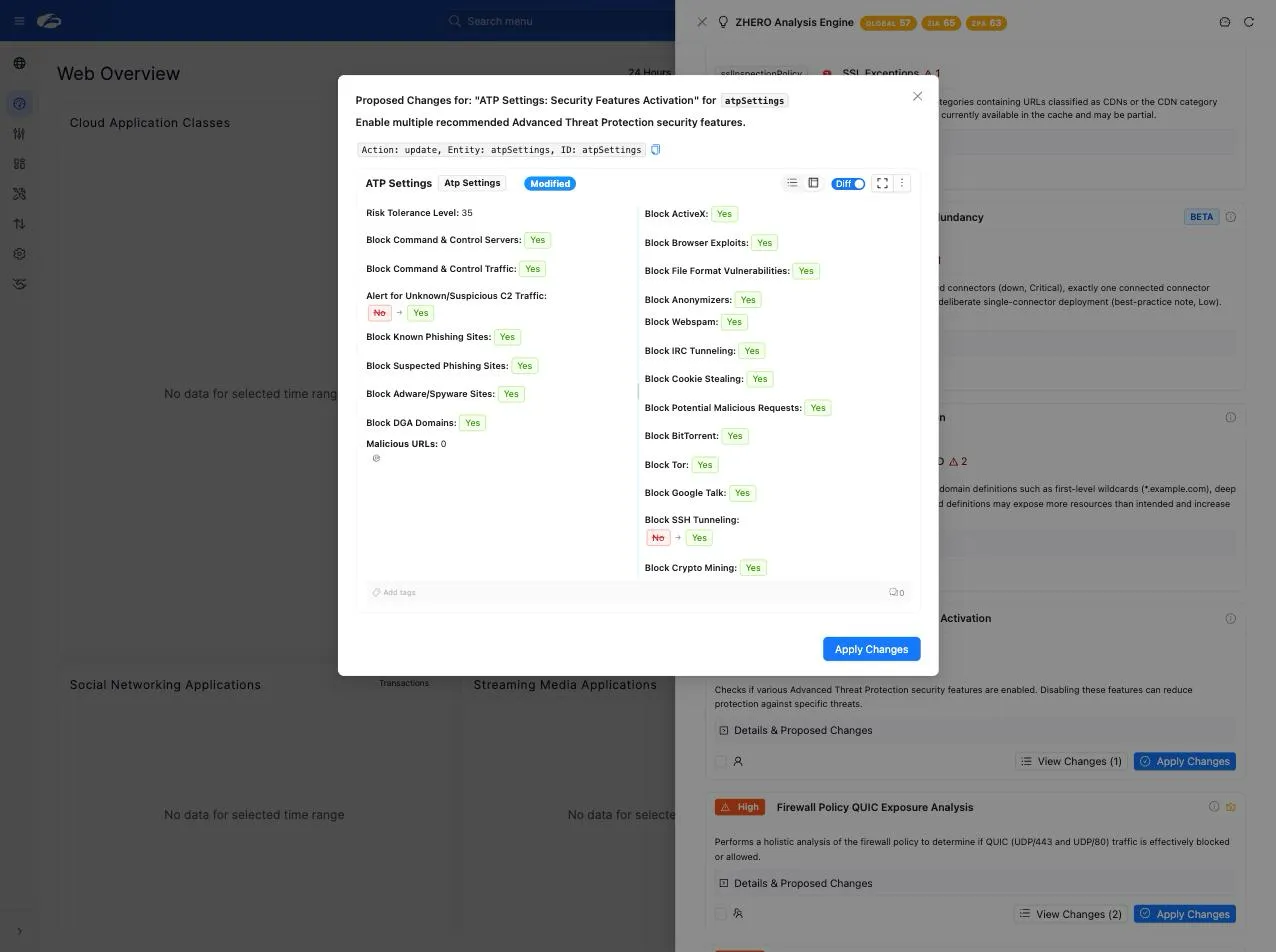
The modal states the action and the entity it targets, then renders the entity as it will be after the change. With the Diff toggle on, the fields that do not move are listed plainly and the ones that do render as old value struck through in red followed by the new one in green, so a change touching two settings out of thirty reads at a glance.
-
Open the drawer and read the diff. Each entry renders as an entity card comparing current and proposed state, with additions, removals and modifications colour-coded. The Compact / Detailed switch collapses the cards when the queue is long.
-
Narrow the list if you need to. Two filters at the top select by change type (Create, Update, Delete) and by entity type. Select All Visible and Deselect All work on the filtered list.
-
Reorder if the sequence matters. Drag an entry to a new position. ZHERO tracks dependencies between entries: a change that references an object created by another entry cannot run before it, and the drawer says so rather than letting you execute into a failure.
-
Optionally, share with the team. Share with Team on a single entry, Share Selected (n), or Share All with Team. Dependent entries are pulled along automatically, and the drawer tells you how many extra changes went with your selection.
-
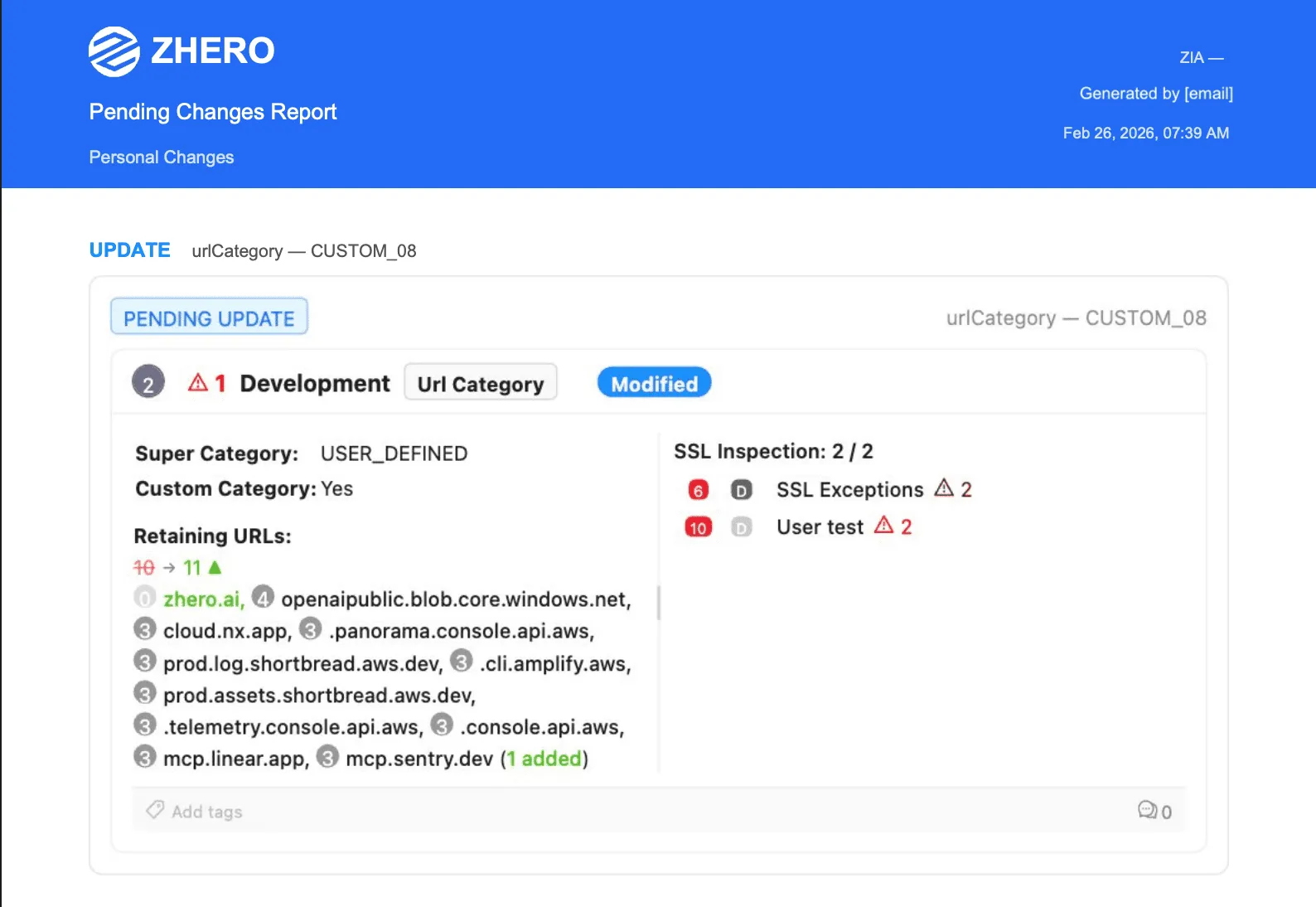
Optionally, export the PDF. The Export PDF button in the drawer header produces a “Pending Changes Report” with one visual diff card per change, labelled Personal or Team.
-
Execute. Per entry with Execute, or in bulk with Execute All (n), Execute Selected (n) and, above 50 clean entries, Execute First 50. Execution is sequential, and the drawer reports what succeeded and what did not.
Changes you decide against are removed with Cancel on the entry, or Cancel All for the whole queue. Cancelling discards the staged change; it never touches the tenant.
What to watch
The conflict guard
Between staging a change and executing it, somebody else can edit the same object directly in the Zscaler console. ZHERO checks for that at execution time.
| Marker | What it means | What to do |
|---|---|---|
| Conflict (gold tag) | The entity changed in the console after the change was staged. The tooltip lists the fields, expected value against found value. | Read the fields, then either Apply anyway to write on top of the current state, or Discard to drop the staged change and keep what the console has. |
| Error (red tag) | The execution attempt failed. The tooltip carries the message. | Fix the cause and use Retry. |
| Batch skip | Conflicted and errored entries are skipped by the bulk execute buttons. | Resolve them individually. |
A conflicted change is never applied silently. That is the whole point of the guard.
Dependencies and placeholders
When a batch creates an object and then references it, the reference points at a placeholder that only resolves when the object exists. This is what makes a whole branch office, a location, a location group, a VPN configuration and the rules that use them, executable as one queue rather than four rounds of manual re-entry. Entries in the same dependency group are shown together, and the group can be removed as a unit.
The queue follows the entity around
A staged change does not live only in the drawer. Any entity with a change waiting on it renders differently everywhere it appears: in the console tables ZHERO enhances, in hover cards, in lists and in drawers, its name turns blue and bold. You do not have to remember what you queued; you meet it where you work.
Wherever a comparison is possible, a Diff switch appears on the entity card and in the drawer header. Turning it on shows the future state against the current one, field by field, with the values that move highlighted and the ones that stay put listed plainly. The switch is global: one click turns the diff on across every open view rather than one card at a time.
The same mechanism serves history. When an entity has a past state rather than a queued one, the comparison runs from past to present instead, which is what the audit timeline renders.
The posture impact of the queue
When your staged changes affect something a scored analysis template cares about, the drawer shows a compact “actual to projected” summary, in the same numbers as the Security Posture Dashboard gauges: Global first, then per product. Conflicted and errored entries are excluded from the projection, and the summary says how many were left out, because the projection promises only what execution would actually deliver.
Limits and notes
- Executing pending changes requires the full version. During the trial the queue works, the diffs work, the PDF works, and the execute buttons open an upgrade prompt instead of writing to the tenant.
- The personal queue lives in your browser. It survives a reload, but it does not follow you to another machine or another browser profile. Share it with the team if it needs to outlive your session.
- Shared changes are synced to ZHERO’s servers and are visible only to members of your tenant group. Enabling Collaboration is an explicit opt-in. See Privacy and data for exactly what is stored.
- Reordering entries in the queue is not the same as reordering policy rules. Queue order is execution order; rule order is a change in its own right, staged like any other. See Policy Reordering.
- One entity, one shared change. If a teammate has already shared a change for an entity, sharing yours raises a conflict warning so you can look at theirs first.
- Execution is sequential by design. A large queue takes as long as the Zscaler API takes.
FAQ
Can I stage a change, close the browser, and come back tomorrow? Yes. The personal queue persists locally. It is tied to the browser profile, so it will not be there on a different machine.
What happens if two of us execute the same shared change at the same time? The queue is synced in real time, so the second execution finds the entry gone. If the tenant state has moved under a staged change, the conflict guard catches it at execution rather than applying it blindly.
Does the PDF include the actual before and after values? Yes. Each change renders as a visual diff card, with the fields that move highlighted, and the report is labelled Personal or Team. It is meant to be readable by someone who does not have ZHERO or console access.
Why is a change greyed out or refusing to execute? Almost always an unresolved dependency: it consumes something another entry in the queue has not created yet. The tooltip on the Execute button names the dependency. Reorder, or execute the dependency first.
Can I move a shared change back to my personal queue? Yes, if you shared it. Other people’s shared changes stay in the team queue.
Related pages
- Mass Edit: one change applied to many entities, staged here
- Policy Reordering: drag-and-drop rule order, staged here
- ZPA Domain Management: bulk domain operations, staged here
- Security Posture Dashboard: the projected score this queue drives
- Unified Audit Timeline: what was executed, by whom
Next steps
- Make one small change and watch it land in the queue instead of the tenant
- Open the drawer, read the diff card, and execute it on its own
- Turn on Collaboration and share a queue with a colleague before a change window
- Export the PDF once and see whether it replaces the change-request attachment you write by hand