SSL Coverage
The SSL Inspection page tells you how much of your encrypted traffic is inspected. SSL Coverage tells you where the rest goes, why, and what it is worth to fix it.
It is an investigation you start when you want it, not a check that runs on its own. A run reads the last 7 days of Web Insights, splits the traffic that was not inspected by reason, destination and rule, and puts a number on every part: the rate points you would gain by inspecting it. From there you can pick the destinations worth changing and collect them into a recovery plan that shows the rate and the ZIA posture score before anyone touches a rule.
Video demo
When to use it
- Your inspection rate is low and you do not know why. The run turns “a quarter not inspected” into a short list of reasons and destinations, each with its weight.
- Before a change window on the SSL Inspection policy. The recovery plan shows what a set of changes would recover, so you can pick the ones that are worth the risk.
- Cleaning up old exceptions. The findings name the Do Not Inspect rules that bypassed no traffic in the last 30 days.
- Building the case for inspecting Microsoft 365 or another large bypass. The rate points say how much of the gap that one decision is.
Where to find it in the UI
Hover the ZHERO icon, click Dashboards, and select the ZIA tab, the fourth one after Entities, Posture Insights and ZCC. SSL Coverage is its sub-tab and opens by default. The ZIA tab carries a BETA badge, like the other product tabs.
Earlier versions showed SSL Coverage as the last sub-tab of Posture Insights. It moved to the ZIA tab with unchanged behaviour, and links to its old place still land on it.
The tab appears on ZIA and Experience Center tenants where the Security Posture Dashboard is available.
Before the first run
Nothing is queried until you press Run investigation. The card says what the analysis reads, what it produces and how many Web Insights queries it can take.
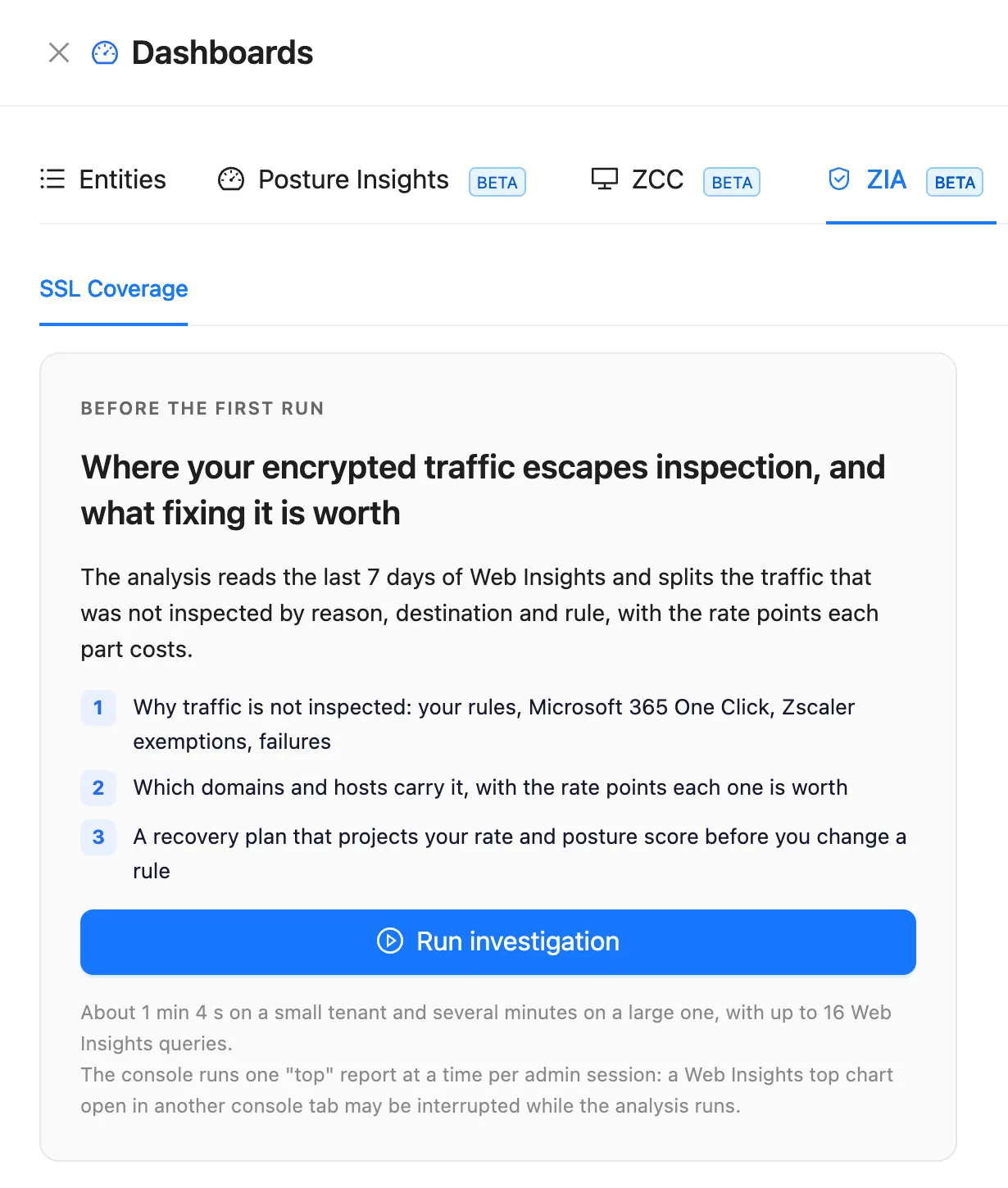
The console runs one Web Insights “top” report at a time per admin session. While the analysis runs, a Web Insights top chart open in another console tab may be interrupted, and the card says so before you start.
The run belongs to the browser, not to the drawer. You can close the Dashboards drawer and come back: the run keeps going and the page shows where it is. The step list at the bottom of the page shows each query, and a run that stopped short offers Resume for the missing steps only.
The rate and where it goes
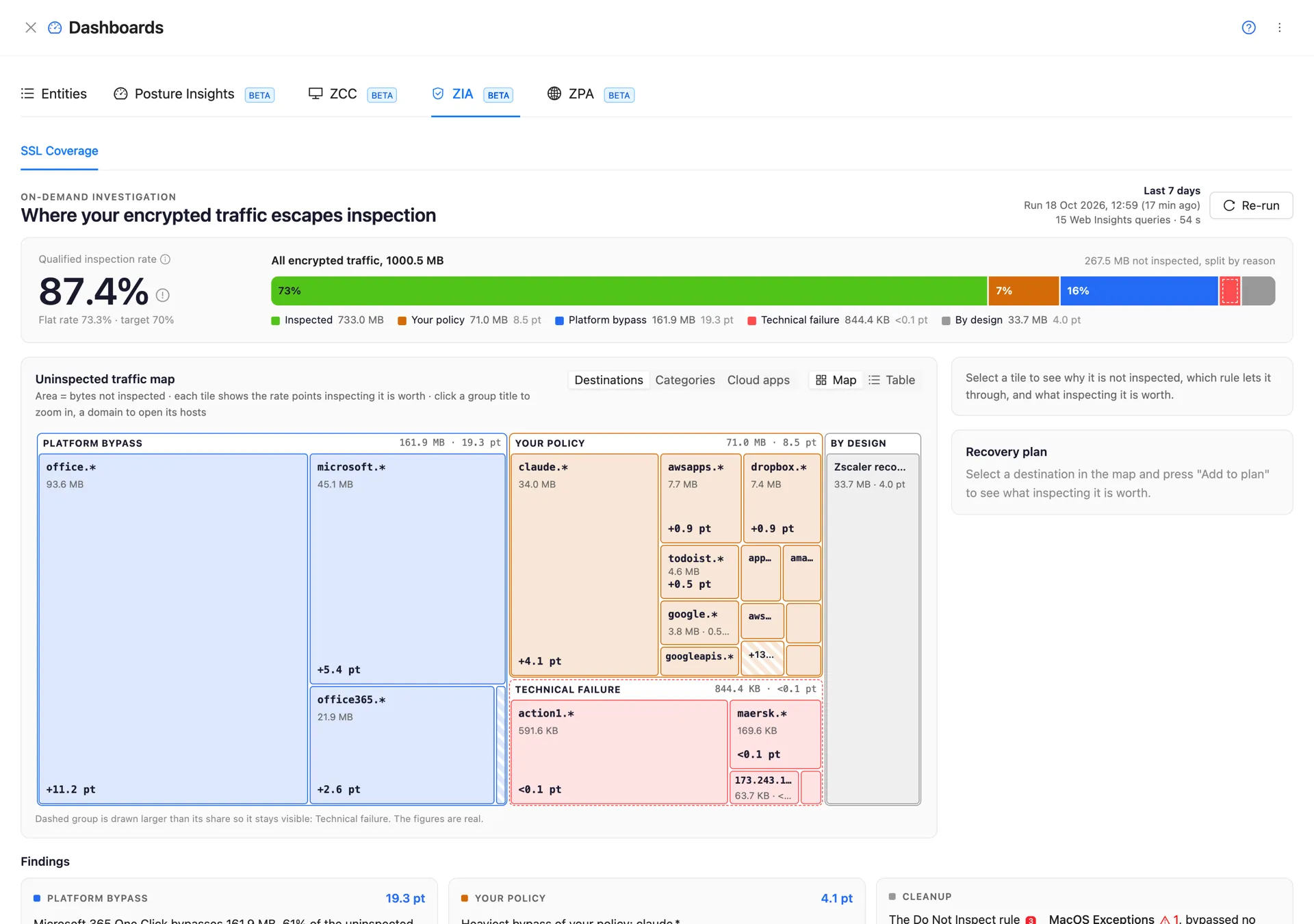
The header of the result carries the period (“Last 7 days”), the time of the run, its age, the number of Web Insights queries and a Re-run action.
The big number is the qualified inspection rate: inspected encrypted traffic divided by all encrypted traffic, minus what Microsoft 365 One Click and the UCaaS bypass let through. Under it, the flat rate counts everything, and the target is 70%.
The bar next to the rate covers all encrypted traffic. The inspected part comes first, then one segment per reason group, each with its bytes and its rate points:
| Group | What it holds | What you can do |
|---|---|---|
| Your policy | Traffic bypassed by your own Do Not Inspect rules | Narrow or remove the rule |
| Platform bypass | Microsoft 365 One Click and the UCaaS bypass | A trade-off: inspect selected apps above the bypass |
| Technical failure | Failed handshakes, undecryptable traffic, mutual TLS, HSM errors | Pinning exemptions or root certificate deployment |
| By design | Zscaler service domains and Zscaler recommended exemptions | Nothing: it is meant to stay uninspected |
| Blocked | Traffic blocked before inspection | Nothing: it never got through |
Bytes the reason split cannot account for appear as their own Unattributed segment instead of being spread over the others. A group too small to see is drawn wider than its share, with a dashed outline; the figures stay the real ones. Clicking a group, in the bar or in its legend, opens it in the map.
Traffic directions
Under the rate, Traffic directions splits the encrypted traffic into what came through Client Connector and the rest, each with its own inspection rate and share. Leave out re-runs the analysis on Client Connector traffic only, and Include again goes back. When a ZCC Fleet Health analysis exists, the Client Connector side also shows how many devices have ZIA active per operating system. Those are device counts only: no Web Insights report splits traffic by device operating system.
The uninspected traffic map
The map shows only the traffic that was not inspected. Area is bytes not inspected, and every tile shows the rate points inspecting it is worth. Three views share the same run:
| View | What the map shows |
|---|---|
| Destinations | Tiles grouped by reason, then by domain; a domain opens its hosts |
| Categories | URL categories, area by uninspected bytes, colour by inspection rate band |
| Cloud apps | The same for cloud applications |
Each view switches between Map and Table. The tables are sortable by destination, reason, inspection rate, uninspected bytes, share of uninspected and rate points.
In Destinations, a group title gives that group the whole map, and a domain opens its hosts. A
domain label such as claude.* sums every domain with that name, whatever its ending, so the hosts
are where you pick the exact destination. Opening a domain costs one Web Insights query, shown in its
tooltip, and is never repeated for the same run. A breadcrumb (All reasons, the group, the domain)
takes you back, and so does Esc.
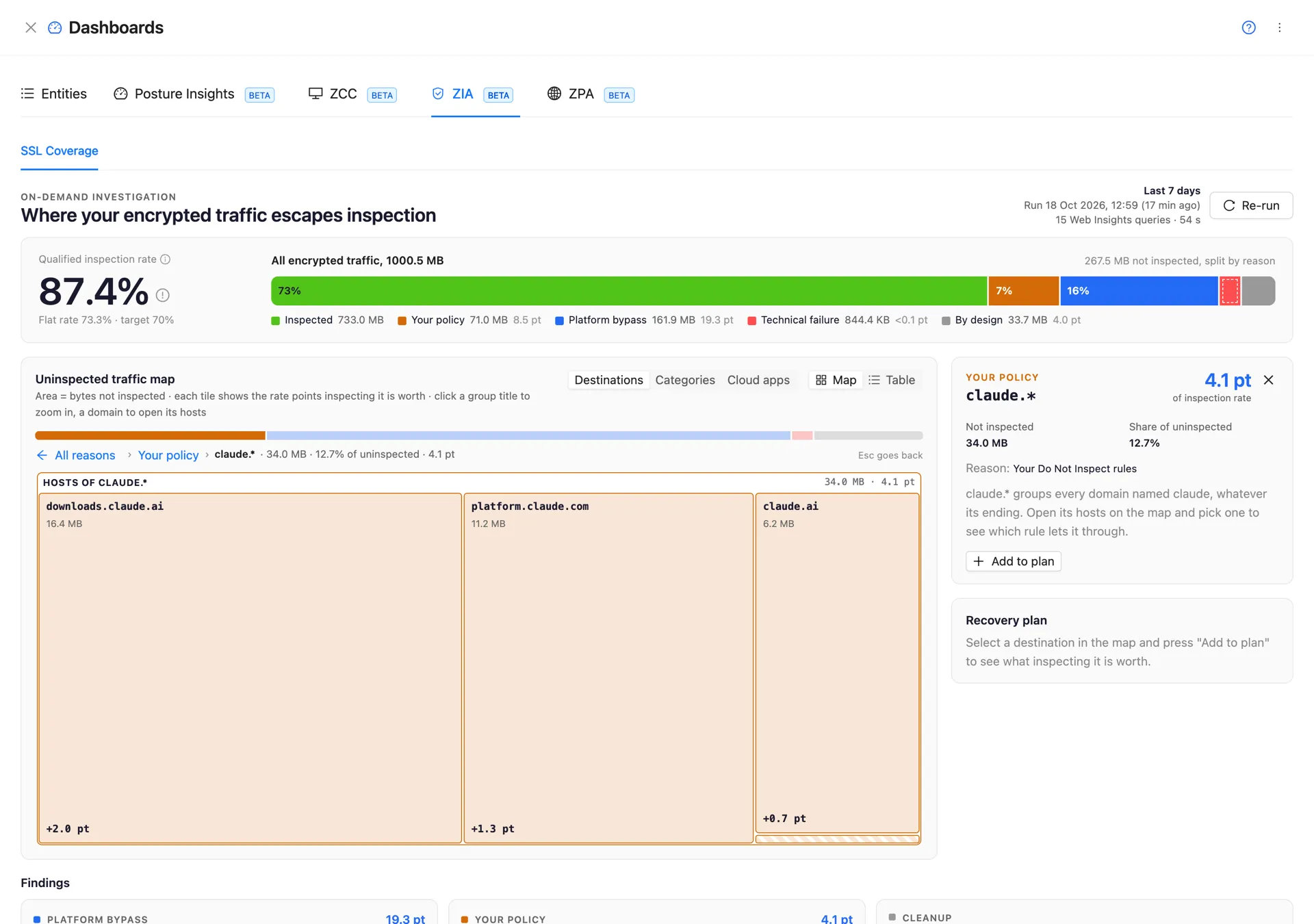
Tiles too small to name fold into one “+N smaller” tile per group, listed on click. Tiles in the By design group carry no gain and cannot be added to the plan.
Why a destination is not inspected
Selecting a host opens the focus panel: the reason in plain words, the bytes and the share of uninspected traffic, the URL categories and the cloud application, the SSL Inspection rule that lets it through, a verdict and the change that would inspect it.
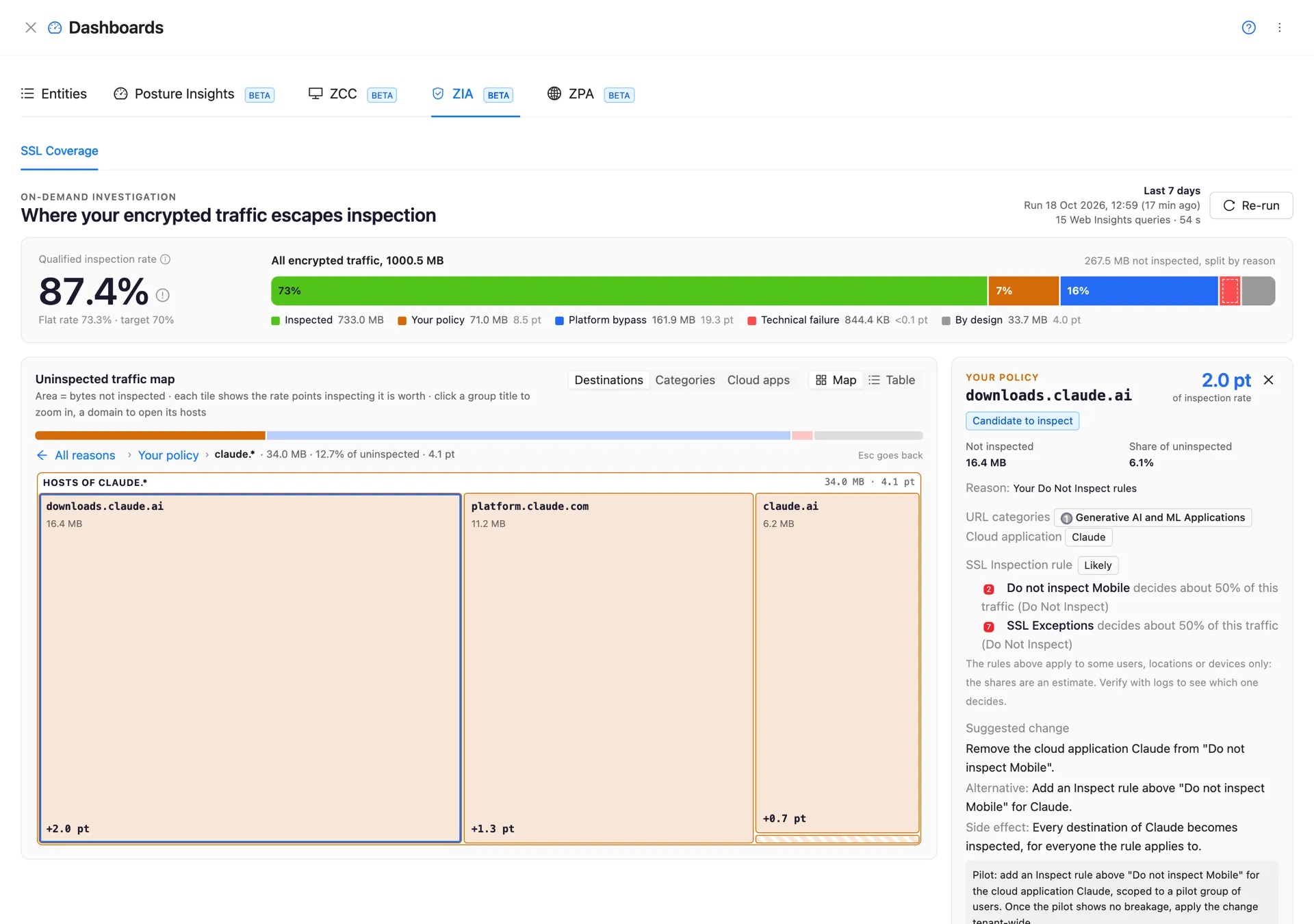
The Web Insights reports never say which rule bypassed a destination, so the rule is labelled by how sure ZHERO is:
- Likely: computed from the rule order and criteria, the way ZIA walks the policy. When the deciding rules apply only to some users, locations or devices, the panel lists the candidates with their estimated shares instead of a single guess.
- Confirmed by logs: after Verify with logs, the rule names seen in a sample of the last day’s web logs for that host replace the estimate, with the number of transactions sampled. A disagreement with the estimate is stated. Verify runs through the same log job path as the Logs panel, so it asks before replacing a log query already running in your session.
- Config match: the match comes from the configuration itself, for example Microsoft 365 One Click, or Microsoft traffic already inspected by a rule placed above One Click.
The verdict is one of Candidate to inspect, Likely certificate pinning: keep a narrow exemption, Exempt by design, Platform bypass (trade-off) or Rule not determined.
The suggested change and the pilot
For each destination the panel writes the suggested change (for example removing a cloud application from a Do Not Inspect rule), an alternative (an Inspect rule above it) and the side effect: what else becomes inspected, for whom. Under it, a pilot variant scopes the same change to a pilot group of users, to apply tenant-wide once it shows no breakage.
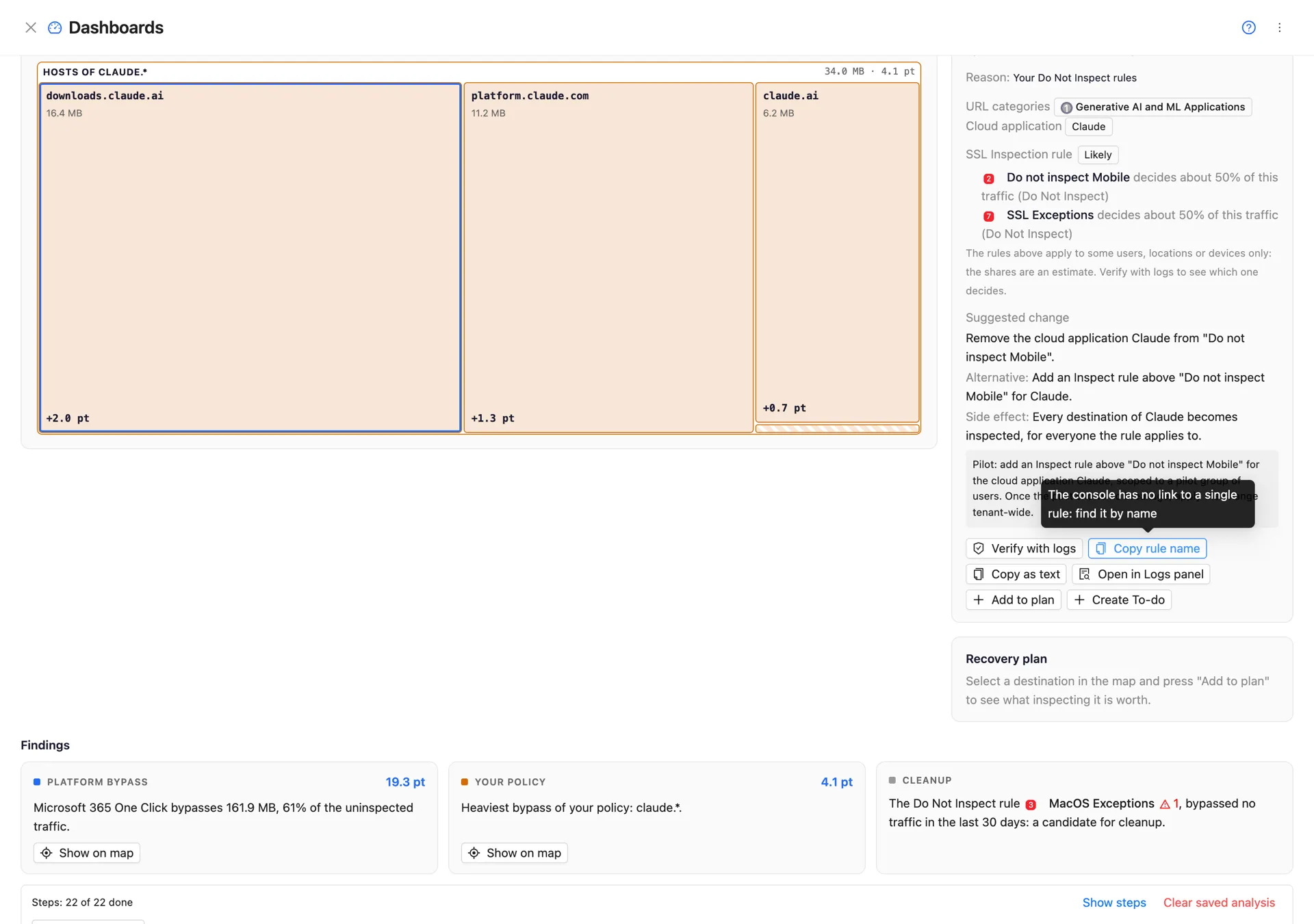
The actions under the panel:
| Action | What it does |
|---|---|
| Verify with logs | Confirms the rule from a sample of real log rows |
| Copy rule name | The console has no link to a single rule: find it by name |
| Copy as text | The verdict, the rule and the suggestion as plain text |
| Open in Logs panel | Opens the Logs panel filtered on the host; nothing runs until you run it |
| Add to plan / Remove from plan | Adds the destination to the recovery plan |
| Create To-do | A shared To-do with the change |
Categories, cloud apps and rules in the panel are ZHERO entities: hover them for the hover card, click them for the drawer.
Findings
Under the map, at most four findings, ordered by the rate points at stake, each with one action:
- the share of the gap that Microsoft 365 One Click bypasses;
- the heaviest bypass of your own policy;
- clusters of failed handshakes, read as likely certificate pinning when they sit on a few hosts, or as a likely missing root certificate when they sit on a few locations or departments;
- Cleanup: Do Not Inspect rules that bypassed no traffic in the last 30 days. A rule is named only when every one of its destination criteria can be measured; a rule on destination IPs only is never labelled.
The recovery plan
Add destinations with Add to plan and the recovery plan projects, for the whole set:
- the dashboard rate, now and with the plan, against the 70% target;
- the Posture SSL rate and the Posture SSL gate before and after;
- the projected ZIA posture score.
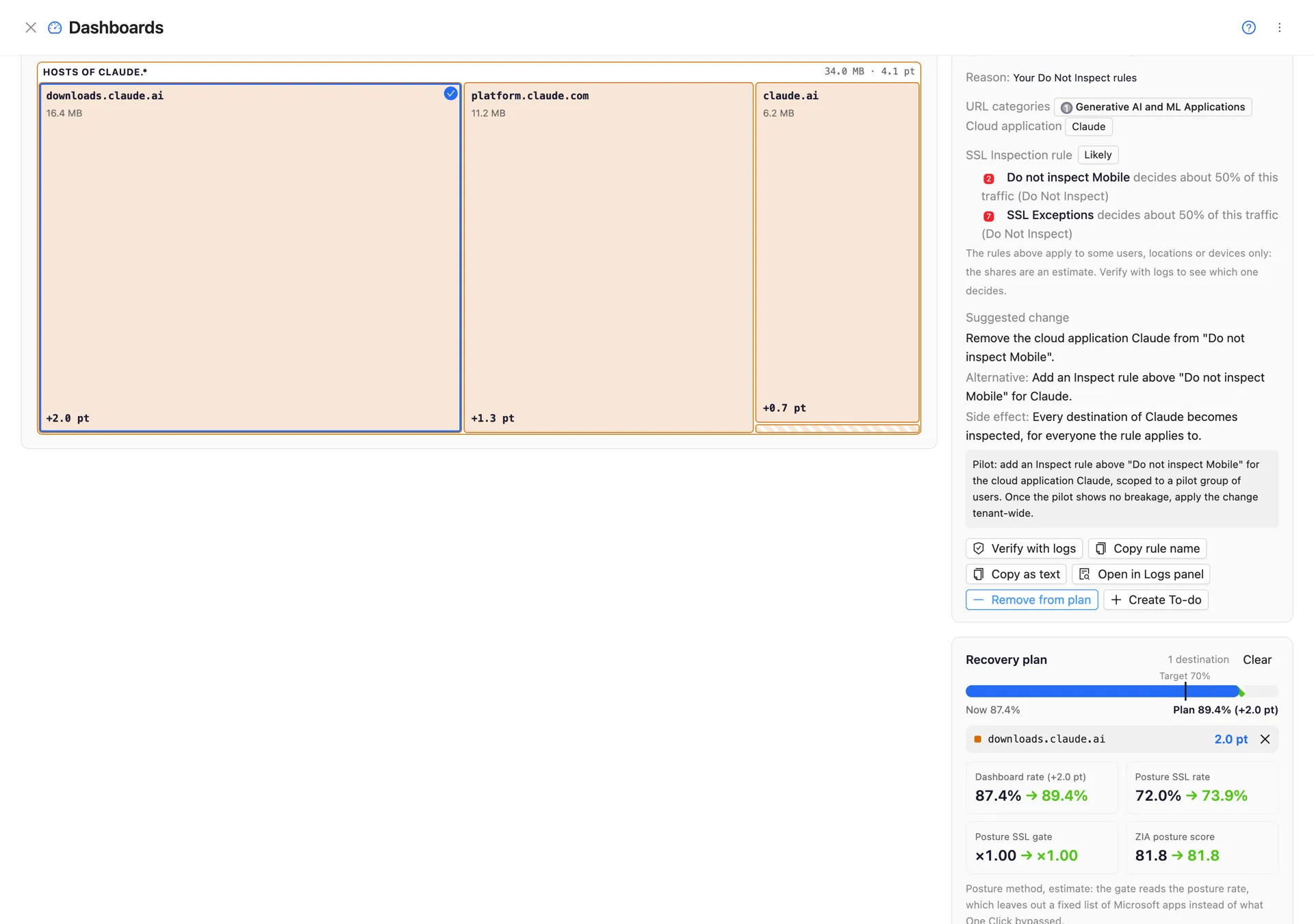
The gate and the score are computed with the posture method, the one the Security Posture Dashboard uses, and the plan says so: the dashboard never promises a score the posture engine will not compute. A host added from a domain already in the plan is never counted twice.
Review suggested changes lists the concrete change for every entry, with its side effect, and Copy all as text. Create To-dos turns them into one To-do per destination, linked to the rule (and to the custom category when there is one), without duplicating an open To-do for the same destination.
The plan lives for the browser session: it survives closing the drawer and reloading the page, not a browser restart. After a Re-run, entries whose destination is still there keep their place with updated numbers, and entries whose destination disappeared are marked No longer uninspected.
Extend to 30 days
The default run covers the last 7 days, the native window of the Web Insights “top” report. After it, Extend to 30 days adds the earlier weeks one at a time on the same end time, reusing the 7-day results. The button says beforehand how many queries the extension takes; the page moves to “last 14 days”, “last 21 days” and then “last 30 days” as each week lands.
Each week has its own top list, so joining them shows destinations no single week reveals and traffic that is heavy only on some days. A destination missing from one week’s top list is marked as a lower bound. You can switch between the 7-day and the 30-day view of the same run without new queries, and an interrupted extension offers to continue.
Saved runs and privacy
The last run is saved per tenant in the extension’s local storage and survives a browser restart. Reopening the tab shows it with its date and age, without querying anything. Clear saved analysis removes it.
The analysis runs in your browser with your console session, and its results stay there. The saved run may include department and location names from the reason breakdowns; none of them ever goes into a To-do, a copied text or a Logs panel launch. See Privacy & Data.
Requirements and limits
- ZIA and Experience Center tenants, with the Security Posture Dashboard available. The tab does not appear on ZPA-only tenants.
- Trial: the ZIA tab and the SSL Coverage sub-tab stay visible; Run investigation and Re-run open the upgrade prompt instead of starting. See Trial and licence.
- One run per tenant at a time. Pressing Run while a run is active shows the active one.
- Web Insights limits apply: the “top” report returns the heaviest destinations of each period; the rest of a group is an “Other” tile so the areas stay true.
- The dashboard rate stays in the dashboard. The posture score and the second ring on the SSL Inspection page keep using the 30-day check described on SSL Inspection Coverage.
FAQ
Why does the dashboard show a different rate from the SSL Inspection page? Different windows and different exclusions. The page uses 30 days of logs and a fixed list of Microsoft 365 apps; the dashboard uses its own period and exactly what One Click bypassed. The info icon next to the rate explains the gap when it is half a point or more.
Does pressing Run change anything in my tenant? No. A run only reads Web Insights reports. The only writes are the To-dos you create.
Why is the rule marked Likely and not certain? Because the traffic reports do not say which rule decided. ZHERO walks your rules in order; when user, location or device criteria decide, it cannot know for sure. Verify with logs settles it from real log rows.
Why can I not add a By design tile to the plan? Zscaler service domains and the recommended exemptions are meant to stay uninspected. Inspecting them breaks things, so they carry no gain.
Does it slow the console down? Nothing runs until you press Run. While a run is active it uses the console’s single “top” report slot, which is why a Web Insights top chart open elsewhere may be interrupted.
Related pages
- SSL Inspection Coverage: the rings on the policy page and the 180-day trend
- Security Posture Dashboard: how the inspection rate gates the ZIA and Global scores
- Analysis templates catalog: the SSL checks
- Floating Logs Panel: where Open in Logs panel lands
- Shared To-do Lists: where Create To-dos lands
Next steps
- Run the investigation and read the bar: which group holds most of the rate points?
- Open the largest tile of Your policy, pick a host and check its rule with Verify with logs
- Add the destinations worth changing to the recovery plan and read the projected score
- Turn the plan into To-dos, or into a pilot, before the next change window