Enabling Collaboration
Most of ZHERO works alone, in your browser. Collaboration is the part that makes it a team tool: shared tags and comments, shared to-do lists, a team change queue, and a team audit trail. It is off until a tenant admin turns it on, because it is the one part that stores something outside your browser.
What Collaboration unlocks
| Feature | What it adds |
|---|---|
| Tags and comments | Shared annotation on any Zscaler entity, synced in real time |
| Shared to-do lists | Tracked, assignable work linked to entities |
| Shared pending changes | A team queue with author attribution and conflict detection |
| Audit trail | Team activity, merged with the Zscaler audit log |
| Collaboration columns in exports | Your team’s tags and comments alongside configuration data |
| Bulk tagging and to-do actions | In the Entities table |
Who can enable it
Only a TenantAdmin. The settings panel says which you are, and if you are not one it tells you to ask your organisation’s administrator rather than silently disabling the switch.
Where to find it in the UI
Click the ZHERO icon, choose Settings, and open the Collaboration tab. The drawer also holds OneAPI credentials and URL lookup settings.
Step by step
- Open Settings, Collaboration. The switch shows the current state for the whole tenant.
- Switch it on. A disclaimer appears listing exactly what will and will not be stored. Read it: it is precise, and it is the contract.
- Accept the data storage terms with the checkbox, then confirm. The acceptance date is recorded and shown in the panel afterwards.
- Check the counters. Once enabled, the panel shows how many tags and assignments the tenant holds, and offers a button through to the dashboard.
Turning it off asks for confirmation as well.
What is stored, and what is not
This is the disclaimer, verbatim in substance.
Stored:
- Entity type (for example “firewall rule”, “URL category”) and entity ID, the Zscaler internal identifier
- Tags you create, with name and colour
- Comments you write
- Shared to-dos you create: title, description, due dates, lists
- Assignee names you type for to-dos, including people without a ZHERO account
- Audit logs of tag, comment and to-do changes, recording entity type and ID only, never configuration
- Changes you explicitly promote to the team queue. These carry the entity configuration of that change, so your team can review and execute it. Nothing is promoted unless you choose to share it
Not stored:
- Your Zscaler configuration at large, other than the changes you explicitly share, above
- Before and after snapshots of executed changes
- User credentials or API keys
- Traffic logs or analytics data
The shared change queue is the one place where an entity’s configuration leaves the browser, and it does so only for the changes you deliberately share. ZHERO’s servers still cannot reach your tenant: a shared change runs only when a member presses Execute, from their own browser. Everything else is a reference: a type and an identifier, meaningless without your tenant.
The Collaboration hub
With Collaboration on, the Collaboration button (people icon) opens the hub:
| Tab | Contents |
|---|---|
| To-dos | Lists, sections and the kanban board |
| Activity | Tags, comments and to-dos grouped by entity, sortable by recent activity |
| Config | The tag library and its statistics, and the actors the tenant recognises |
| Audit Trail (admin) | The unified timeline |
| Data Health (admin) | The orphan scan, below |
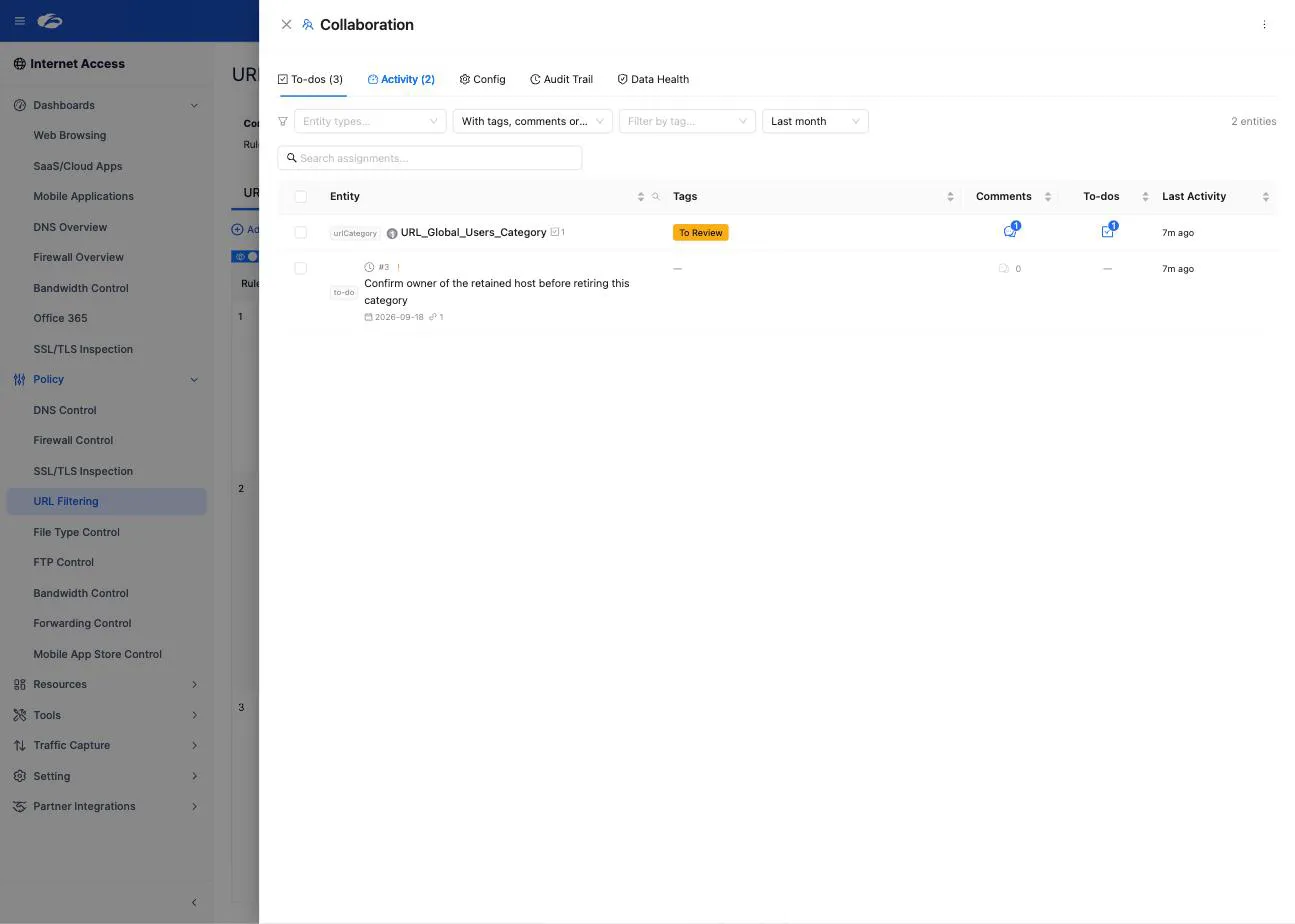
The button carries a badge with the to-dos assigned to you. The hub’s kebab menu holds the cache utilities: force a sync, or reset the local collaboration cache.
Data Health: the orphan scan
Collaboration data points at Zscaler entities. When an entity is deleted in the console, whatever was attached to it becomes an orphan: a tag assignment or a comment pointing at something that no longer exists.
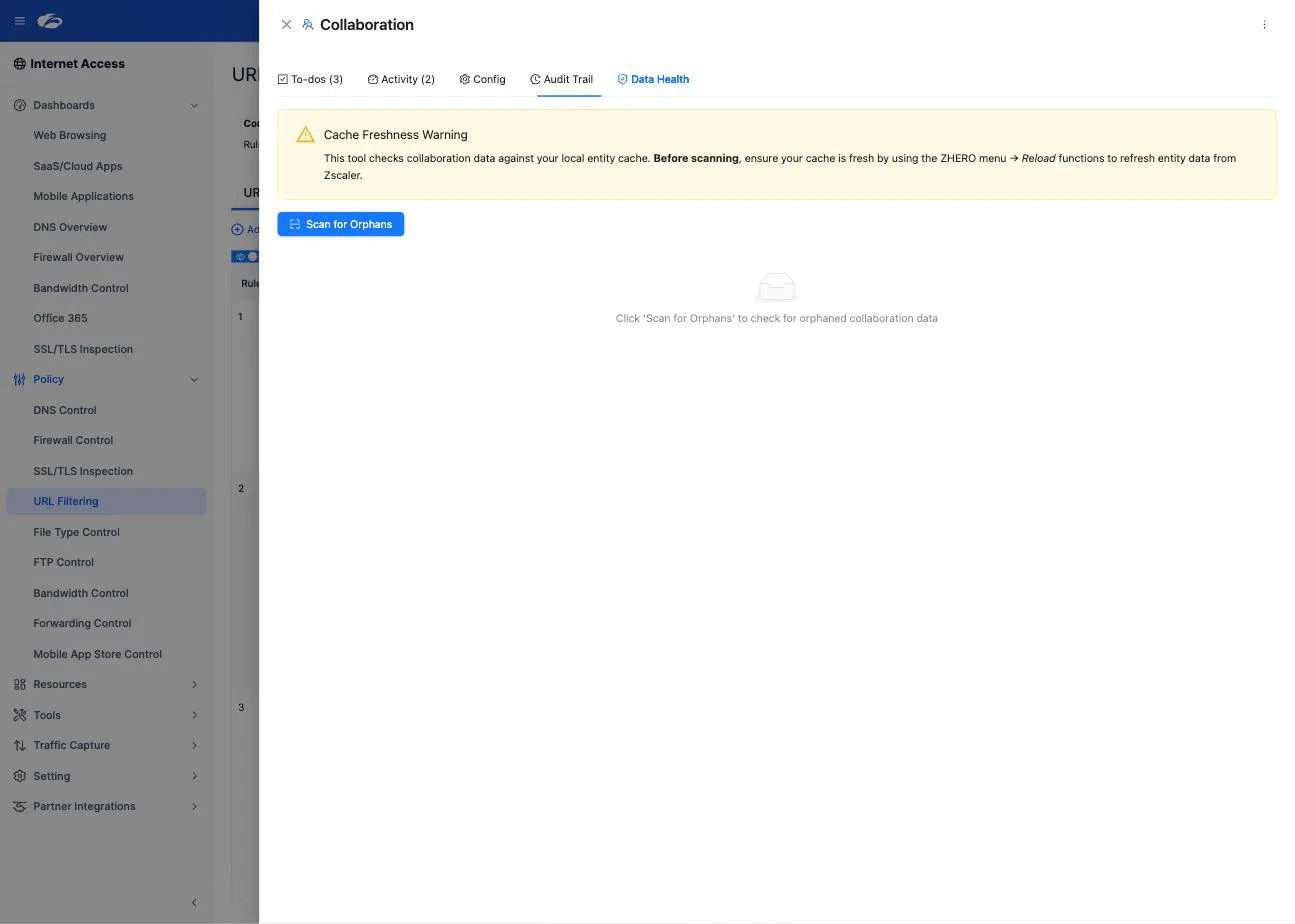
The Data Health tab finds them.
- Refresh your entity cache first. The scan compares collaboration data against your local entity cache, so a stale cache produces false orphans. The tab warns you about this: use the ZHERO menu’s Reload functions before scanning.
- Scan for Orphans. The results are summarised as Tag Orphans, Entity Orphans, Soft-Deleted and Total Issues, with a table listing each item, its type, the entity it references, who created it and when.
- Select and delete what is genuinely orphaned. The deletion is permanent, from the local cache and the backend, and cannot be undone.
A clean scan says so explicitly.
Limits and notes
- Collaboration is tenant-wide and opt-in, enabled by a tenant admin, not per user.
- Data is tenant-isolated: only members of your tenant group see it.
- Collaboration is not available during a trial in the settings drawer; the trial offers an explanatory panel instead.
- The orphan scan is only as good as your cache. Scanning on a stale cache is the one way to delete something you meant to keep.
- Disabling Collaboration stops the shared layer for the tenant. Do it deliberately, and tell the team first: shared to-dos and the team queue are where their work lives.
FAQ
Does enabling Collaboration send my Zscaler configuration anywhere? No, with one explicit exception: a change you promote to the team queue carries that change’s entity configuration, because your teammates need it to review and execute the change. Nothing is promoted unless you share it.
Can I use tags privately without sharing them? Tags can be team-visible or personal. The feature still has to be enabled for the tenant.
What happens to shared data if we turn Collaboration off? The shared layer stops being available in the console. Export anything you need first, from the audit trail or the exports with collaboration columns.
Why does Data Health need an admin? Because deleting orphaned collaboration data is permanent and affects everyone in the tenant.
We deleted a policy and its to-dos are still around. That is exactly what the orphan scan is for. Refresh your entity cache, scan, and clear them.
Related pages
- Tags and Comments
- Shared To-Do Lists
- Unified Audit Timeline
- Pending Changes: the team queue
- Privacy and data: the whole picture, beyond collaboration
Next steps
- Read the disclaimer properly before enabling, and keep a copy of what it says
- Enable it, then create the first few tags the team will actually use
- Share one change with the team before a change window and see how the review goes
- Put a quarterly orphan scan in the calendar, after a cache refresh